CATEGORY

PWA

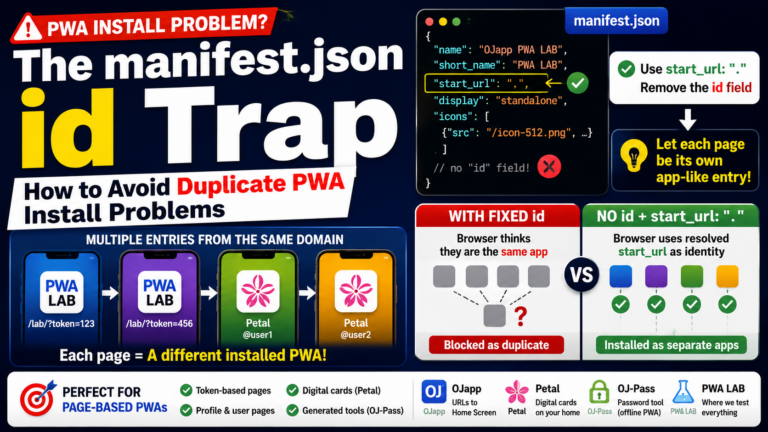
    The manifest.json id Trap: How to Avoid Duplicate PWA Install Problems

    The manifest.json id Trap: How to Avoid Duplicate PWA Install Problems In a PWA manifest, there is a field called id. When you first start building PWAs, you usually focus on name, start_url, display, and icons. To be honest, because a PWA can work without id, it is easy to think, “Do I really need this?” But when you want to handle multiple PWAs on the same domain, or generate app-like entries for each user, this id field can suddenly become a huge wall. After a lot of rough testing in PWA LAB, I ended up with one very simple pattern: remove id and use start_url: ".". This article explains why that can help when you want multiple PWA-style icons from the same domain. What is the manifest.json id? id is the value used to identify a PWA. The browser uses it to decide whether the app being installed is the same app as one already installed, or a completely new app. In other words, it is like a name tag for the PWA. If the browser thinks the PWA […]
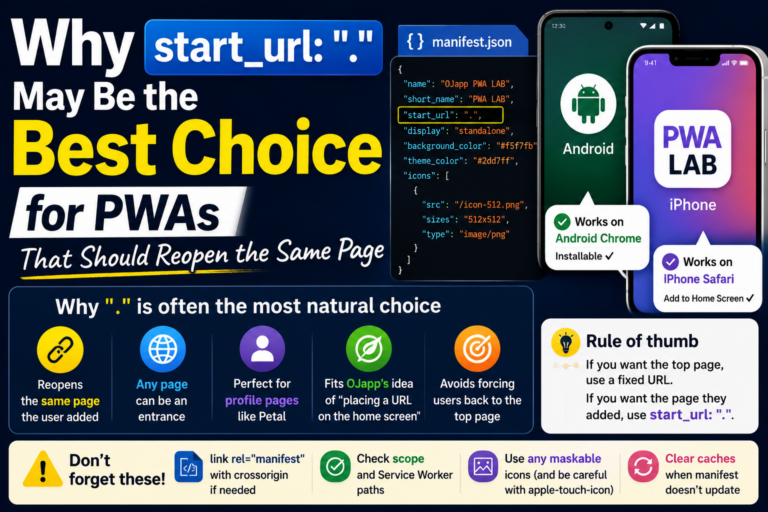
      Why start_url: “.” May Be the Best Choice for PWAs That Should Reopen the Same Page

      Why start_url: “.” May Be the Best Choice for PWAs That Should Reopen the Same Page In a PWA manifest, there is a setting called start_url. This setting tells the browser which URL should open first when the PWA is launched from the home screen. At first, it feels natural to write a fixed URL like "/lab" or "/app". But after testing different patterns in PWA LAB, I started to feel this: If there is no special reason to force a fixed page, start_url: "." may be the most natural choice. What is start_url? start_url is the URL that opens when the PWA is launched from the home screen. For example, if your manifest contains this: "start_url": "/lab" then opening the home screen icon will usually take the user to /lab. This is easy to understand. If your PWA is a top page or a fixed app-style entry point, this works fine. But there are more complicated cases. The problem: the page the user added and the page that opens can be different Imagine a user is viewing a page […]

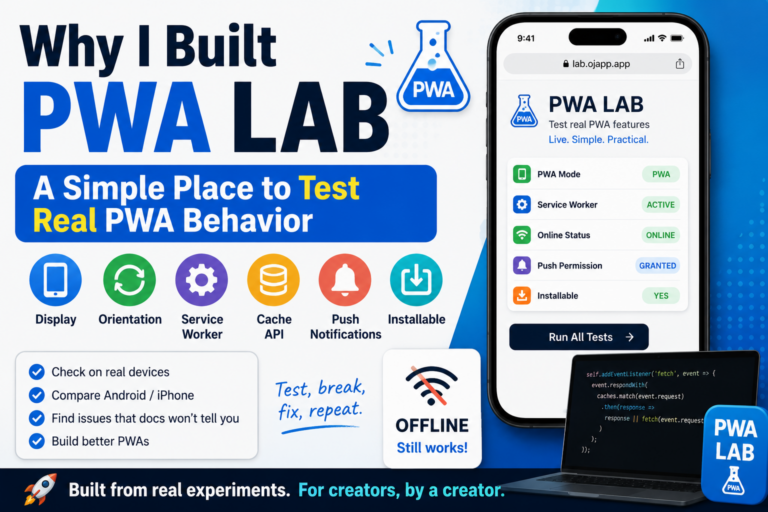
        Why I Built PWA LAB: A Simple Place to Test Real PWA Behavior

        Why I Built PWA LAB: A Simple Place to Test Real PWA Behavior Why I built PWA LAB While working with PWA behavior and home screen support in OJapp, I kept thinking the same thing. Reading the specification is not enough to understand how it actually behaves. Write a manifest.json, register a Service Worker, set display to standalone, and the site should open like an app. As an explanation, that sounds correct. But when I actually tested it on iPhone and Android, it was not that simple. That is why I built OJapp PWA LAB. PWA LAB is an experiment page for testing PWA settings and status while actually seeing what is happening. Even if you write it by the book, it may not behave the same way A PWA can be made with HTML, manifest.json, and a Service Worker. But in real use, the behavior changes a lot depending on the browser and OS. Something may work well in Android Chrome but not behave as expected in iPhone Safari. Something may look fine on desktop Chrome but appear differently […]

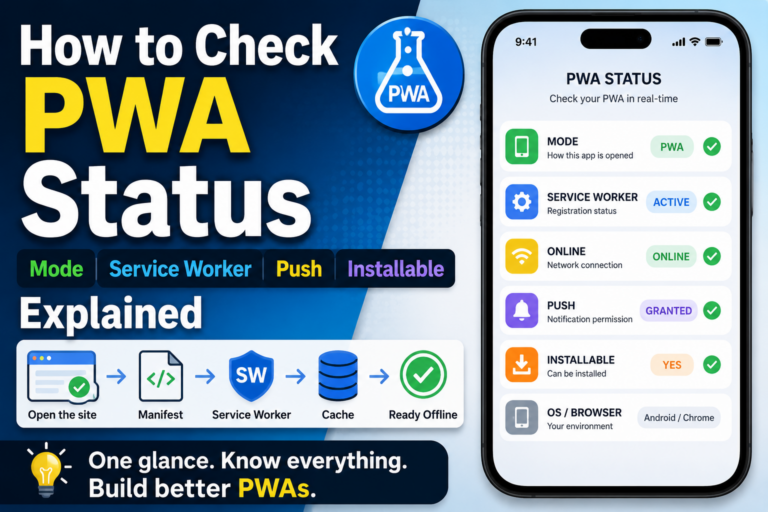
          How to Check PWA Status: Mode, Service Worker, Push, and Installable Explained

          How to Check PWA Status: Mode, Service Worker, Push, and Installable Explained A PWA can be hard to understand if you only look at the page When you build a PWA, it can be surprisingly hard to tell whether it is actually working as a PWA. You may have written manifest.json, registered a Service Worker, and made the site addable to the home screen. But then you still wonder: is this really running as a PWA? Is the page opened as a normal website? Is it opened from the home screen in standalone mode? Is the Service Worker active? Is the browser treating it as installable? These things are not always obvious from the visual appearance alone. That is why I made a page called PWA LAB in OJapp. It is a simple experiment page for checking PWA status directly. In this article, I will use the status items shown in PWA LAB as examples and explain what to check when testing a PWA. MODE: is the page currently opened as a PWA? MODE shows whether the page is currently […]

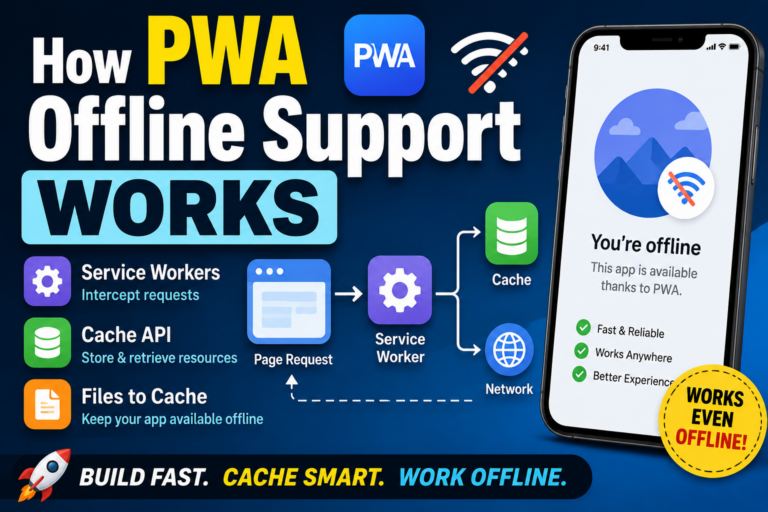
            How PWA Offline Support Works: Service Workers, Cache API, and Files to Cache

            How PWA Offline Support Works: Service Workers, Cache API, and Files to Cache Conclusion: PWA offline support works by saving required files in advance To make a PWA work offline, you usually use a Service Worker. In simple terms, the browser saves files such as HTML, CSS, JavaScript, and images in advance. Then, when there is no network connection, the app can display the page using those saved files. So PWA offline support is not magic. It works because the files needed to run the app have already been cached. What you need for offline support When you add offline support to a PWA, there are three main things to think about. Service Worker Cache API A list of files to cache A Service Worker works like a background layer between the page and the network. When the page tries to load a file, the Service Worker can decide whether to fetch it from the network or return a saved version from the cache. What does a Service Worker actually do? A Service Worker is different from regular JavaScript. It […]

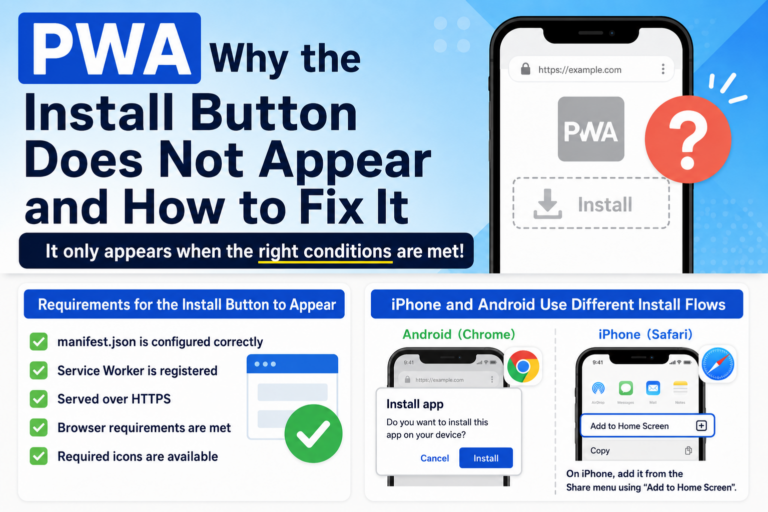
              Why the PWA Install Button Does Not Appear: Common Causes and Fixes

              Why the PWA Install Button Does Not Appear: Common Causes and Fixes Conclusion: the PWA install button only appears when the right conditions are met You may build what looks like a PWA, open it on a phone or PC, and still not see an install button. In most cases, this is not exactly a bug. It usually means the browser does not yet recognize the site as an installable web app. The common causes are a missing or incorrect manifest.json, an unregistered Service Worker, a non-HTTPS environment, or browser-specific install requirements that are not being met. A problem I ran into more than once While testing PWA behavior myself, I often hit the same confusing situation: the manifest was there, the page worked, but the browser still would not offer installation. That is what makes this problem annoying. From the outside, the site may look perfectly fine. But a PWA is not complete just because the HTML page works. The browser has to decide, “this is an installable web app.” If one required piece is missing, the install prompt […]

                Is PWA Dead? The Reality in 2026 and How to Use It Correctly

                Is PWA Dead? The Reality in 2026 and How to Use It Correctly “Is PWA dead?” A few years ago, Progressive Web Apps were expected to replace native apps. The idea was simple: build once on the web, and deliver an app-like experience everywhere. But in 2026, the situation looks very different. PWA is not dead. But the assumptions behind it have completely changed. 1. Why PWA Was So Promising PWA was designed to bring app-like capabilities to the web. No installation required Distributed via URL Offline support Push notifications In theory, this meant you could replace native apps with a single web-based solution. At the time, many believed that app stores might eventually become unnecessary. 2. The Reality in 2026: A Split Ecosystem Today, PWA behaves very differently depending on the platform. iOS (iPhone) Limited PWA support Unstable Service Worker behavior Offline features are not reliable Push notifications are restricted As a result, PWA does not fully work as an app replacement on iOS. Android Stable Service Worker support Reliable offline capabilities Working push notifications Near-native app experience On […]

                  Why iOS Changes Your PWA URL When Adding to Home Screen (Fix & Causes)

                  When you add a web page to the iPhone home screen, the saved icon may open a different URL from the one you were viewing. I ran into this problem while building Petal. What I wanted was simple: open an individual page like /petal/{token} and add that exact page to the home screen. But in reality, when I opened it from the home screen, it jumped to another URL like /petal/@username. At first, I thought it was Safari cache or some mysterious iOS behavior. But the conclusion was much simpler. The cause was that I had written a fixed URL in start_url inside manifest.json. It was completely my mistake. The confusing part was that this mistake did not appear clearly from the beginning. What happened What I wanted to do was very simple. Open a different Petal card page for each user Add that page to the iPhone home screen Open that person’s page directly from the next time In other words, I wanted to keep the exact URL that was currently open on the home screen. But when I […]

                    What Can PWAs Do on iPhone in 2026? Safari Limits Explained

                    Progressive Web Apps (PWAs) are designed to make websites behave like native apps. However, on iPhone (Safari), PWA functionality is significantly limited. In this guide, we clearly explain what still works and what doesn’t in Safari as of 2026. Why Is PWA Limited on Safari? Safari has never fully supported PWAs compared to browsers like Chrome. After 2024, Apple introduced changes that further restricted PWA functionality. As a result, PWAs on iPhone are no longer reliable as a full app-like solution. What Works on Safari Despite the limitations, some features still work: Add to Home Screen (WebClip) Basic website rendering Light caching behavior Standard HTML, CSS, and JavaScript In short, Safari still supports normal web usage. What Doesn’t Work Properly Many core PWA features are limited or unstable: Reliable Service Worker behavior Full offline functionality True standalone app mode Consistent manifest support Stable cache control These limitations make PWAs unreliable on iOS. The Reality: WebClip Instead of Full PWA On iPhone, “Add to Home Screen” creates a WebClip, not a full PWA. Opens in Safari No real offline support No […]

                      How to Add a Website to Your iPhone Home Screen (2026 Guide)

                      How to Add a Website to Your iPhone Home Screen (2026 Guide) Did you know you can add any website to your iPhone home screen and use it like an app? This feature makes it easier to access your favorite tools, blogs, or services with just one tap. In this guide, we’ll walk you through how to add a website to your home screen step by step. What Does “Add to Home Screen” Do? “Add to Home Screen” allows you to save a website as an icon on your iPhone. Open the site instantly No need to search or bookmark Feels like launching an app This feature uses a system called WebClip. Step-by-Step Instructions 1. Open the Website in Safari First, open the website you want to add using Safari. 2. Tap the Share Button Tap the share icon (a square with an arrow pointing up) at the bottom of the screen. 3. Select “Add to Home Screen” Scroll down and tap “Add to Home Screen”. You can rename the icon if needed. Then tap “Add” to finish. Why It […]

                      OJapp Tips  -  PWA・ホーム画面追加の実機検証ブログ

                      OJapp Tips - Practical PWA & Home Screen UX Lab

                      OJapp Tips is a technical blog documenting real-world PWA behavior, iPhone Safari quirks, home screen installation, manifest.json, Service Worker, Web App Manifest, WebClip, icon cache issues, and practical web development tips based on actual testing with iPhone, Android, and PC.

                      The articles are based on hands-on experiments from PWA LAB and real development experience with OJapp, Petal, and OJ-Pass. Instead of only repeating official documentation, OJapp Tips focuses on the details developers actually get stuck on.