
This site uses the original WordPress plugin OJapp PWA Marketing.
Each article can be added to your Home Screen with its own dedicated icon.
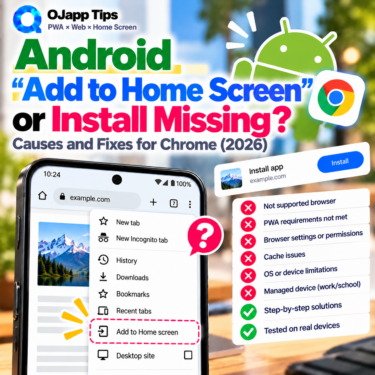
You want to add a website to your Android home screen, but Add to Home Screen is nowhere to be found.
Or perhaps you expected Add to Home Screen but Chrome shows Install instead. Maybe the site was added, but the icon has a small Chrome badge, or launching it opens a different page.
Android can be confusing here because placing a website on the home screen and installing a PWA are not always the same thing.
So if the exact words “Add to Home Screen” are missing, that does not necessarily mean the site cannot be added.
In this article, I will start with the things an Android user can check immediately, then move into Web App Manifest and PWA settings for developers.
- 1 First check: Does Chrome show “Install” instead?
- 2 What is the difference between Install and a home screen shortcut?
- 3 Why Add to Home Screen or Install may be missing
- 4 Why does the home screen icon have a Chrome badge?
- 5 For developers: Why is the site not being installed as a PWA?
- 6 Why does the Android icon look too small or incorrectly cropped?
- 7 Why does the installed icon open the wrong page?
- 8 For multiple PWAs, id and scope matter too
- 9 Separate user-side problems from PWA configuration problems
- 10 Using an iPhone instead?
- 11 Conclusion
First check: Does Chrome show “Install” instead?
The first thing to check is the wording in Chrome’s menu.
Depending on how Chrome handles the site, the relevant action may appear as Install rather than Add to Home Screen.
So before assuming the option has disappeared, open the Chrome menu and look for an installation-related action as well.
What is the difference between Install and a home screen shortcut?
Both can result in an icon appearing on the Android home screen, but they do not necessarily produce the same result.
| Type | Typical behavior |
|---|---|
| Installed web app | Installed as a web app and launched according to settings such as its display mode |
| Website shortcut | Acts primarily as an entry point to a web page and opens through the browser |
The exact installation behavior can also vary depending on the Android device and browser environment.
It is therefore more useful to think of Android as supporting both installing a web app and placing an entry point to a website on the home screen, rather than assuming every home screen icon is the same.
 What PWAs Can and Cannot Do on iOS in 2026: A Complete Practical Guide
Why Add to Home Screen or Install may be missing
1. You are using an in-app browser
Links opened from LINE, Instagram, X, TikTok, and other apps may appear inside an in-app browser rather than Chrome itself.
It may look like a normal web page, but the browser UI and available installation features can be different.
Fix: Open the page directly in Chrome
Look for an option such as Open in Chrome or Open in browser. If necessary, copy the URL and paste it directly into Chrome.
Then open Chrome’s menu again and check the available options.
2. You are looking only for “Add to Home Screen”
If Chrome considers the site suitable for an app-style installation flow, the action may be presented as Install instead.
Check all installation-related entries rather than looking only for one specific label.
3. The web app is already installed
Check both your home screens and Android’s app list for the same name or icon.
An installed PWA can be treated more like an application than a simple browser shortcut, so it may already exist somewhere other than the home screen you are currently viewing.
4. Chrome is temporarily in an unexpected state
If the option was previously available, reload the page and reopen Chrome before testing again.
If you are replacing an old installation or shortcut, removing the existing one first can also make the test easier to understand.
Why does the home screen icon have a Chrome badge?
Sometimes a site is successfully added to the home screen but the icon has a small browser badge.
That does not necessarily mean the home screen operation failed.
The result may be a browser-backed website shortcut rather than the app-style PWA installation you expected.
If your only goal is quick access to the URL, that may be perfectly fine.
If you expect a standalone PWA experience, however, the site’s Web App Manifest and installation configuration are the next things to inspect.
For developers: Why is the site not being installed as a PWA?
1. Check HTTPS
An installable PWA needs to be served from a secure context such as HTTPS in normal production use.
Make sure the live site is not still being served over plain http://.
2. Make sure the Web App Manifest is actually loaded
<link rel="manifest" href="/manifest.json">Having a manifest file somewhere on the server is not enough. The page needs to reference it correctly, and the browser needs to be able to load it.
Chrome DevTools can help verify that the expected manifest is being used.
3. Check the required manifest members
For Chromium-based browsers, check the manifest members used for installability, including:
nameorshort_name- appropriate
icons start_urldisplayand/ordisplay_override
For the icons, check that suitable 192×192 and 512×512 images are available.
If you use prefer_related_applications, check that setting as well.
4. Is a Service Worker required?
You may still find older PWA guides claiming that a Service Worker is always required for installation.
That is no longer a good general rule. A Service Worker itself is not an absolute requirement for PWA installability.
Service Workers remain extremely useful for offline behavior, caching, push notifications, and other capabilities, but “there is no Service Worker” should not automatically be treated as the reason an installation option is missing.
I have also tested PWA behavior without a Service Worker on real devices, and this is one area where older PWA explanations can easily lead developers in the wrong direction.
Why does the Android icon look too small or incorrectly cropped?
If installation works but the icon looks wrong, treat that as a separate issue.
On Android, the Manifest icons and their purpose values are particularly important.
{
  "icons": [
    {
      "src": "/icon-512.png",
      "sizes": "512x512",
      "type": "image/png",
      "purpose": "any"
    },
    {
      "src": "/icon-maskable-512.png",
      "sizes": "512x512",
      "type": "image/png",
      "purpose": "maskable"
    }
  ]
}
Android launchers can crop icons into different shapes. In my own PWA LAB device testing, using only a maskable configuration did not always produce the visual result I wanted.
My current approach is to provide separate any and maskable icon definitions when appropriate.
Why does the installed icon open the wrong page?
If you add an article, product, profile, or tool but launching the icon opens the site’s home page instead, check the Manifest’s start_url.
{
  "start_url": "/"
}
With this configuration, the root URL is the application’s launch entry point.
There is nothing inherently wrong with that design if the entire site is intentionally treated as one app.
But if users are expected to place specific pages on their home screens, it is worth asking whether always sending them back to the root is the experience you actually want.
This question is one of the reasons I started experimenting with 1P1A, or One Page. One App., where the page itself can become the home screen entry point.
For multiple PWAs, id and scope matter too
If you are experimenting with multiple PWAs on the same origin, start_url is not the only relevant Manifest member.
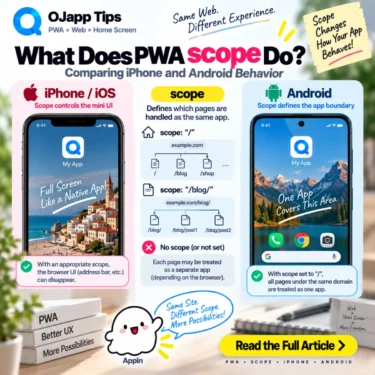
id is used for application identity, while scope defines the navigation scope associated with the web app.
During PWA LAB testing with multiple home screen apps on the same domain, I also encountered Android configurations where a broad scope did not produce the separation I expected.
That does not mean that scope itself is the application’s identity. The important point is to inspect id, start_url, and scope as separate pieces of the configuration.
Separate user-side problems from PWA configuration problems
If Add to Home Screen or Install seems to be missing on Android, I would check the problem in this order:
- Make sure the page is actually open in Chrome
- Look for Install as well as Add to Home Screen
- Check whether the web app is already installed
- Determine whether nothing can be added or whether Chrome is simply creating a different type of home screen entry
If those checks look normal but the site still does not behave like the PWA you intended, move on to HTTPS and the Web App Manifest.
“I cannot put this website on my home screen” and “this website is not being installed as the PWA I expected” are different problems.
Separating those two questions makes Android installation problems much easier to debug.
Using an iPhone instead?
iPhone has a different installation flow and a different set of common problems, including Safari’s share sheet, image sharing, and in-app browsers.
See the iPhone guide: Why “Add to Home Screen” is missing and how to fix it.
Conclusion
If Add to Home Screen appears to be missing on Android, first check whether Chrome is offering Install instead.
Also remember that a website shortcut and an installed PWA can both place icons on the home screen while producing different behavior afterward.
Start by opening the page directly in Chrome and identifying what kind of installation or shortcut option is available.
If the PWA still does not behave as intended, check HTTPS, the Web App Manifest, icons, start_url, and, for more complex multi-app configurations, id and scope.
That order makes it much easier to tell whether Android truly cannot add the site or whether it is simply handling the site differently than you expected.
Add OJapp Tips as a preferred source on Google
Make it easier to find OJapp Tips articles in Google Search.