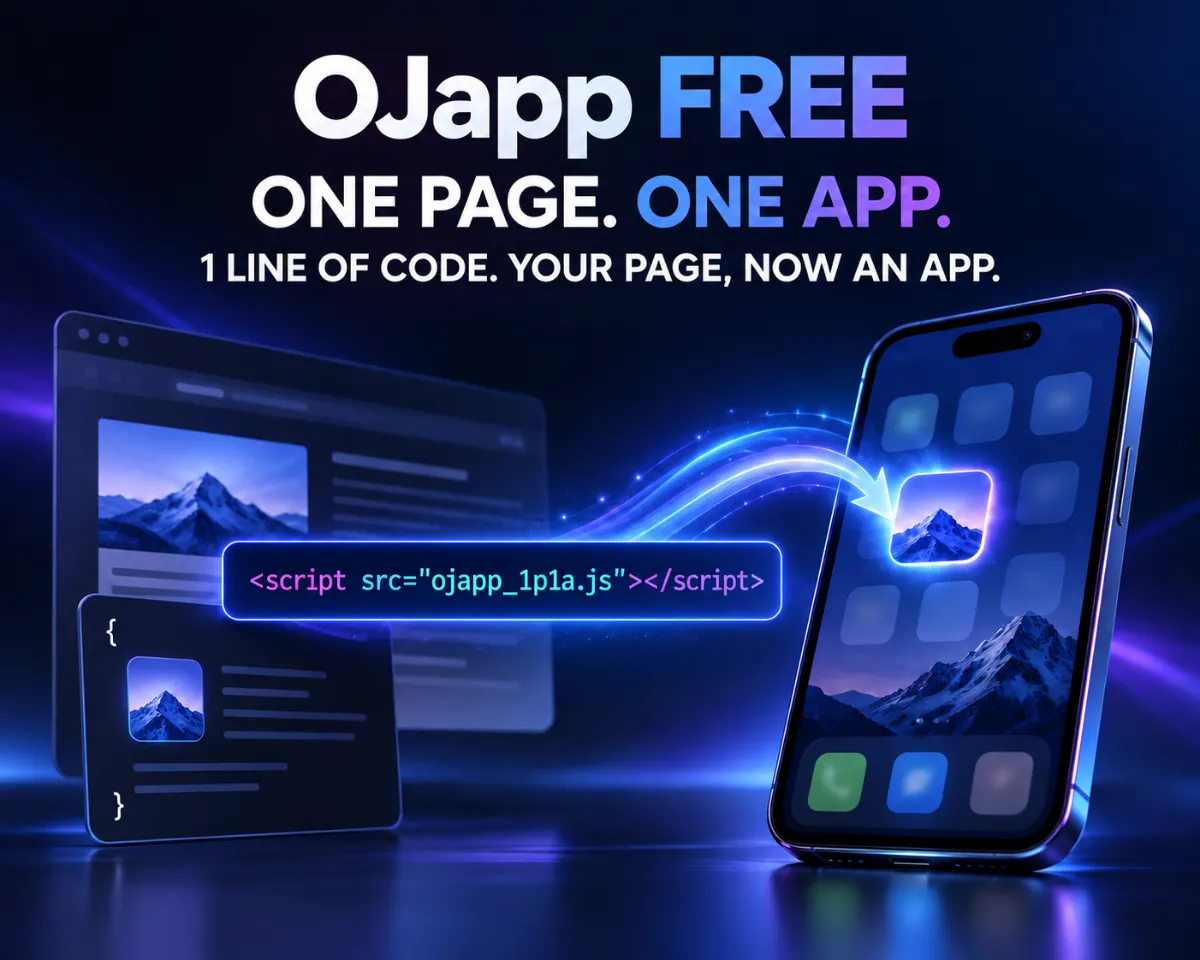
This site uses the original WordPress plugin OJapp PWA Marketing.
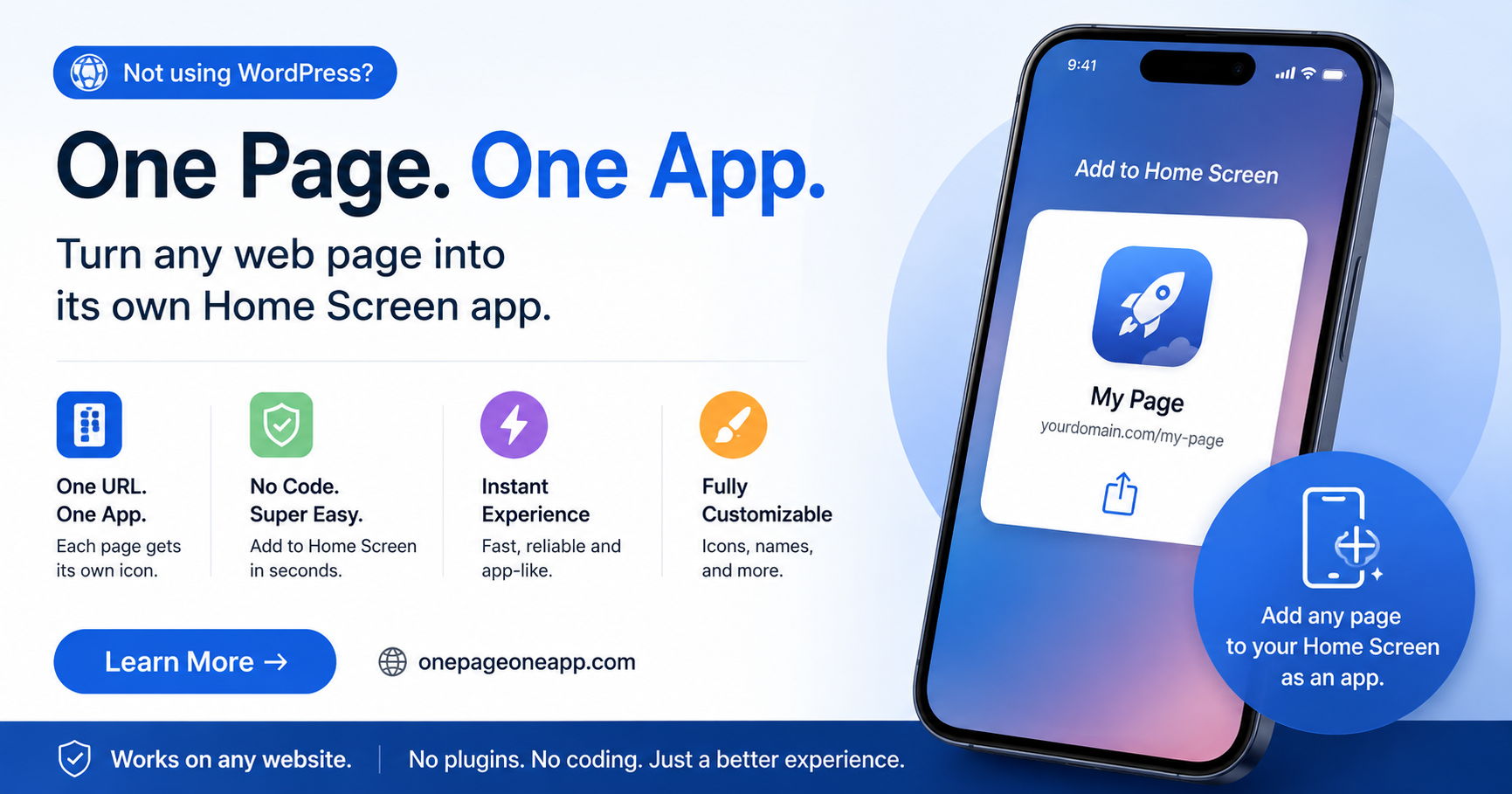
Each article can be added to your Home Screen with its own dedicated icon.
- 1 Why the PWA Install Button Does Not Appear: Common Causes and Fixes
- 1.1 Conclusion: the PWA install button only appears when the right conditions are met
- 1.2 A problem I ran into more than once
- 1.3 Cause 1: manifest.json is not being loaded correctly
- 1.4 Cause 2: the site is not served over HTTPS
- 1.5 Cause 3: iPhone handles installation differently
- 1.6 Things to check first
- 1.7 What I learned from testing
- 1.8 Related articles
- 1.9 Summary
Why the PWA Install Button Does Not Appear: Common Causes and Fixes
Conclusion: the PWA install button only appears when the right conditions are met
You may build what looks like a PWA, open it on a phone or PC, and still not see an install button.
In most cases, this is not exactly a bug. It usually means the browser does not yet recognize the site as an installable web app.
The common causes are a missing or incorrect manifest.json, an unregistered Service Worker, a non-HTTPS environment, or browser-specific install requirements that are not being met.
A problem I ran into more than once
While testing PWA behavior myself, I often hit the same confusing situation: the manifest was there, the page worked, but the browser still would not offer installation.
That is what makes this problem annoying. From the outside, the site may look perfectly fine.
But a PWA is not complete just because the HTML page works. The browser has to decide, “this is an installable web app.” If one required piece is missing, the install prompt may never appear.
 What PWAs Can and Cannot Do on iOS in 2026: A Complete Practical Guide
Cause 1: manifest.json is not being loaded correctly
For a PWA, the Web App Manifest is one of the most important files.
It defines the app name, icon, display mode, start URL, and other app-like settings.
For example, your PWA may fail to be recognized properly if any of these are missing or incorrect:
nameorshort_nameis missingstart_urlis missingdisplayis still set tobrowser- Required icon sizes are missing
- The link to
manifest.jsonis wrong
Icons are especially easy to overlook. The site may look normal in the browser, but the PWA install check may still fail if the required icon size is not available.
Cause 2: the site is not served over HTTPS
PWAs generally need to run in a secure HTTPS environment.
If something works during local development but fails in production, it is worth checking the actual URL and hosting setup.
Services like GitHub Pages, Cloudflare Pages, and Cloudflare Workers usually provide HTTPS by default. Still, right after setting up a custom domain, there can sometimes be temporary instability.
Cause 3: iPhone handles installation differently
On Android Chrome, when the conditions are met, the browser may show an install prompt or install button.
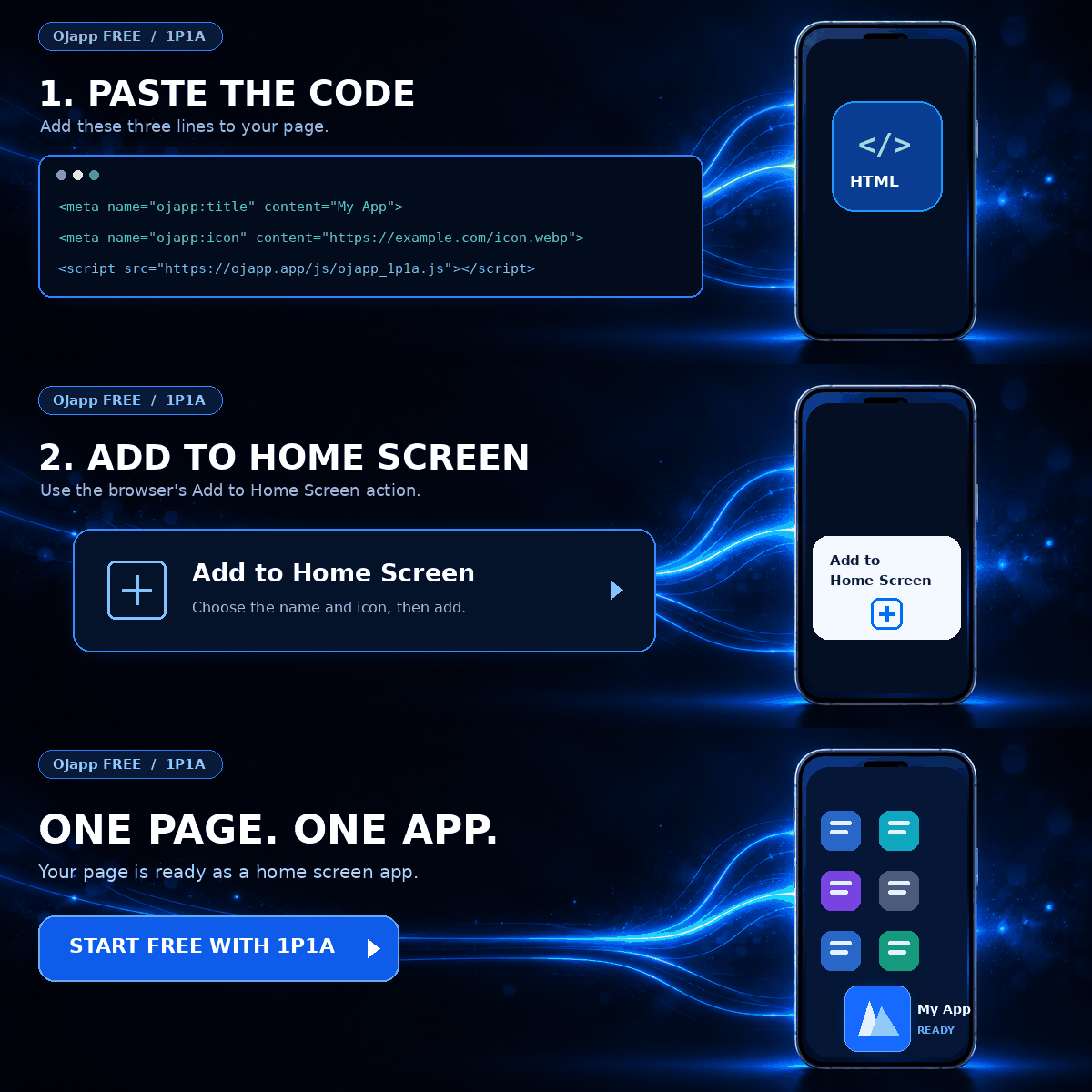
On iPhone Safari, the flow is different. Instead of a clear install button, users usually add the site from the Share menu using “Add to Home Screen.”
So even with the same PWA, Android and iPhone can look very different.
If you expect iPhone Safari to behave exactly like Android Chrome, it is easy to think the PWA is not working.
Things to check first
- Is
manifest.jsonbeing loaded correctly? - Are
name,short_name,start_url, anddisplayset? - Are the required icon sizes available?
- Is the Service Worker registered?
- Is the site served over HTTPS?
- On iPhone, are you using the Share menu and “Add to Home Screen”?
What I learned from testing
PWA code can look simple when you only read the examples.
But in real testing, behavior can change a lot depending on the browser, OS, cache state, and device.
Safari in particular can be tricky. Updates may not appear immediately, and home screen icons can stay stuck with old cached versions.
That is why PWA development is not just “write the code and done.” Real-device testing matters a lot.
Related articles
If you want to start from the basics, read What Is a PWA? A Simple Explanation of How Websites Become App-Like on Smartphones.
If you want to check the actual setup flow, How to Build a PWA: manifest.json, Service Worker, and Home Screen Support is also useful.
If you are mainly concerned about iPhone behavior, Safari PWA Limitations: What Works and What Does Not is closely related.
Summary
When the PWA install button does not appear, the fastest path is to check the manifest, Service Worker, HTTPS environment, and browser-specific behavior.
Especially on iPhone, expecting the same install prompt as Android can lead to confusion.
PWAs are useful, but browser differences are still real. In the end, checking on an actual device is the most reliable way to know what is really happening.
Add OJapp Tips as a preferred source on Google
Make it easier to find OJapp Tips articles in Google Search.