This site uses the original WordPress plugin OJapp PWA Marketing.
Each article can be added to your Home Screen with its own dedicated icon.
- 1 How to Check PWA Status: Mode, Service Worker, Push, and Installable Explained
- 1.1 A PWA can be hard to understand if you only look at the page
- 1.2 MODE: is the page currently opened as a PWA?
- 1.3 ONLINE: is the device connected to the network?
- 1.4 SERVICE WORKER: is the background layer active?
- 1.5 PUSH: notification permission status
- 1.6 OS: which environment are you testing on?
- 1.7 INSTALLABLE: does the browser consider the page installable?
- 1.8 A simple mistake I made while building PWA LAB
- 1.9 The best order for checking PWA status
- 1.10 Related articles
- 1.11 Summary
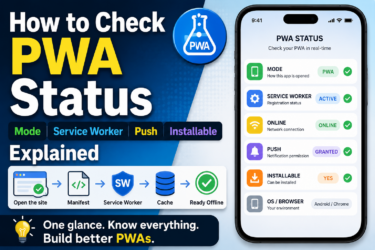
How to Check PWA Status: Mode, Service Worker, Push, and Installable Explained
A PWA can be hard to understand if you only look at the page
When you build a PWA, it can be surprisingly hard to tell whether it is actually working as a PWA.
You may have written manifest.json, registered a Service Worker, and made the site addable to the home screen. But then you still wonder: is this really running as a PWA?
Is the page opened as a normal website? Is it opened from the home screen in standalone mode? Is the Service Worker active? Is the browser treating it as installable?
These things are not always obvious from the visual appearance alone.
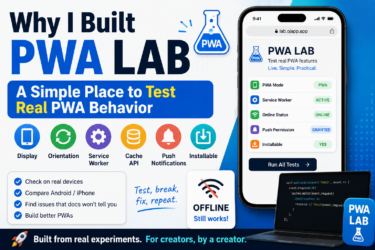
That is why I made a page called PWA LAB in OJapp. It is a simple experiment page for checking PWA status directly.
In this article, I will use the status items shown in PWA LAB as examples and explain what to check when testing a PWA.
MODE: is the page currently opened as a PWA?
MODE shows whether the page is currently opened as a normal web page or as a PWA.
For example, if the page is opened in a normal browser tab, it is shown as WEB. If it is opened from a home screen icon and running in standalone display mode, it is shown as PWA.
The important point is that even if a site supports PWA features, it is still treated as a normal web page when opened in a regular browser tab.
In other words, “a page that can become a PWA” and “a page currently opened as a PWA” are different states.
In PWA LAB, the display changes depending on how the page is opened: WEB in the browser, PWA from the home screen.
 What PWAs Can and Cannot Do on iOS in 2026: A Complete Practical Guide
ONLINE: is the device connected to the network?
ONLINE shows whether the device currently has a network connection.
If it says ONLINE, the device can communicate with the network. If it says OFFLINE, the device is not connected.
However, this does not mean that ONLINE equals a correct PWA, or OFFLINE means it is not a PWA.
Some PWAs are designed to show certain screens even when offline.
So this item is simply for checking whether the device is connected to the internet right now.
SERVICE WORKER: is the background layer active?
The Service Worker is one of the most important parts of a PWA.
It sits between the page and the network. It can return cached files, help with offline display, and control how requests are handled.
In PWA LAB, I made it possible to check whether the Service Worker is active.
If this status is ACTIVE, the Service Worker is enabled.
But this does not automatically mean that offline support is complete.
A Service Worker can be registered and active, but if its fetch handling does nothing, the page may still not work offline.
This difference matters a lot.
Having a Service Worker and having a fully working offline PWA are not the same thing.
PUSH: notification permission status
PUSH shows the current permission state for Web Push notifications.
If it says DEFAULT, the user has not allowed or denied notifications yet.
If it says GRANTED, notifications are allowed. If it says DENIED, notifications are blocked.
Some people imagine notifications when they hear the word PWA, but notifications are not required for a PWA.
Many PWAs do not use push notifications at all.
So if PUSH is still DEFAULT, that does not mean the PWA has failed.
OS: which environment are you testing on?
OS shows the current device environment.
It can roughly identify whether the page is being viewed on Windows, Mac, iOS, Android, or another platform.
This matters because PWA behavior changes a lot depending on the OS and browser.
For example, iPhone Safari and Android Chrome handle home screen installation very differently.
So when checking PWA behavior, it is better to separate the results by OS instead of treating all devices the same.
INSTALLABLE: does the browser consider the page installable?
INSTALLABLE shows whether the browser has judged the page as installable.
In Chromium-based browsers, when the right conditions are met, the beforeinstallprompt event can fire.
In PWA LAB, when this event fires, INSTALLABLE is shown as YES.
If the event does not arrive after a short time, it is shown as NO.
One thing to be careful about: iPhone Safari does not always show an install prompt like Android Chrome.
On iPhone, the normal flow is to use the Share menu and choose “Add to Home Screen.”
So even if INSTALLABLE says NO, that does not always mean the page cannot be added to the home screen on iPhone.
It is easier to think of this item mainly as a Chromium-style installability check.
A simple mistake I made while building PWA LAB
While building PWA LAB, I got stuck because of a very basic mistake.
I should have written the manifest path as /lab/manifest.json, but I had written /leb/manifest.json instead.
It was only a one-letter mistake, but it completely broke the PWA check.
The page itself still appeared normally. But because the manifest was not being loaded, important PWA information was missing.
PWA development can break suddenly because of small path mistakes like this. That is why having visible status checks is extremely helpful.
The best order for checking PWA status
When checking whether a PWA is working correctly, I recommend looking at the items in this order.
- Is
manifest.jsonbeing loaded correctly? - Is the Service Worker registered?
- When opened from the home screen, does MODE become PWA?
- Can the required screen appear while offline?
- In Chromium-based browsers, does INSTALLABLE become YES?
- On iPhone, can the page be added from the Share menu?
At first, it is easy to mix together “PWA support,” “install prompt,” and “offline support.”
But in reality, each one depends on different conditions.
Once you separate them, it becomes much easier to find the cause of a problem.
Related articles
If you want to start from the basics, read What Is a PWA? A Simple Explanation of How Websites Become App-Like on Smartphones.
If you want to see the actual setup flow, How to Build a PWA: manifest.json, Service Worker, and Home Screen Support is also useful.
If you want to move on to cache and offline support, Understanding PWA Cache Strategies is closely related.
Summary
When checking PWA status, it is easier to separate items such as MODE, ONLINE, SERVICE WORKER, PUSH, OS, and INSTALLABLE instead of judging only by appearance.
MODE tells you whether the page is currently opened as a PWA. SERVICE WORKER tells you whether the background layer is active. INSTALLABLE tells you whether the browser has judged the page as installable.
PWA behavior depends on the manifest, Service Worker, cache, browser rules, and OS differences. Even a small mistake can change the result.
That is why a testing page like PWA LAB can make PWA behavior much easier to understand.
Add OJapp Tips as a preferred source on Google
Make it easier to find OJapp Tips articles in Google Search.