This site uses the original WordPress plugin OJapp PWA Marketing.
Each article can be added to your Home Screen with its own dedicated icon.
- 1 Why I Built PWA LAB: A Simple Place to Test Real PWA Behavior
- 1.1 Why I built PWA LAB
- 1.2 Even if you write it by the book, it may not behave the same way
- 1.3 What I wanted most was to see the current state
- 1.4 Android Chrome and iPhone Safari felt very different
- 1.5 A one-letter manifest mistake can break everything
- 1.6 A Service Worker can be active, but that does not make it magic
- 1.7 Cache is useful, but it can also become a mess
- 1.8 PWA LAB is also an experiment space for OJapp
- 1.9 Related articles
- 1.10 Summary
Why I Built PWA LAB: A Simple Place to Test Real PWA Behavior
Why I built PWA LAB
While working with PWA behavior and home screen support in OJapp, I kept thinking the same thing.
Reading the specification is not enough to understand how it actually behaves.
Write a manifest.json, register a Service Worker, set display to standalone, and the site should open like an app.
As an explanation, that sounds correct.
But when I actually tested it on iPhone and Android, it was not that simple.
That is why I built OJapp PWA LAB.
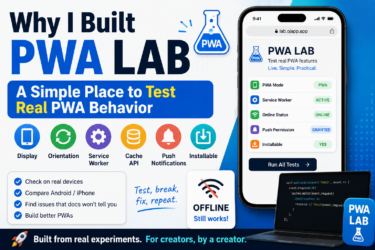
PWA LAB is an experiment page for testing PWA settings and status while actually seeing what is happening.
Even if you write it by the book, it may not behave the same way
A PWA can be made with HTML, manifest.json, and a Service Worker.
But in real use, the behavior changes a lot depending on the browser and OS.
Something may work well in Android Chrome but not behave as expected in iPhone Safari.
Something may look fine on desktop Chrome but appear differently on mobile.
The Service Worker may be ACTIVE, but the page may still fail to display correctly offline.
These things happen quite often.
That made me feel that learning the basic syntax is not enough for PWA development.
I needed a place where I could test things on real devices and see what is reflected, what is ignored, and what behaves differently.
 iOS and Android Have Different Goals for PWAs: The Real Difference Beyond Support or No Support
What I wanted most was to see the current state
The difficult part of PWA debugging is that the page can still look normal even when something is failing.
Even if manifest.json is not being loaded, the page itself may still open.
Even if the Service Worker is not registered, the visual appearance may not change.
It can also be hard for beginners to tell whether the page is installable, or whether it is simply being opened as a normal web page.
So in PWA LAB, I made the status visible.
- MODE: whether the page is opened as a PWA
- ONLINE: whether the device has network access
- SERVICE WORKER: whether the Service Worker is active
- PUSH: notification permission status
- OS: which environment the page is being viewed on
- INSTALLABLE: whether the browser sees it as an install candidate
Just having these status items makes PWA testing much easier.
MODE is especially important.
The same page has a different meaning when opened in a browser and when opened from the home screen.
A page that supports PWA features and a page that is currently running as a PWA are not the same thing.
Android Chrome and iPhone Safari felt very different
One thing I noticed again while building PWA LAB was how different Android Chrome and iPhone Safari are.
Android Chrome tends to reflect manifest settings in a relatively understandable way.
If you set display to standalone, it feels more like a PWA. If you set it to fullscreen, it can feel much more app-like.
theme_color and background_color are also easier to see in the actual UI.
iPhone Safari, on the other hand, has its own behavior.
You can add a site to the home screen, but the flow is different from Android-style installation prompts.
Some manifest settings also do not work as strongly as you might expect.
The way display and orientation behave is almost a different world compared with Android.
This difference is hard to understand just by reading explanations.
You only start to feel it after adding the page to the home screen, opening it, deleting it, adding it again, and testing it directly.
A one-letter manifest mistake can break everything
While building PWA LAB, I also got stuck because of a very silly mistake.
I should have written the manifest path as /lab/manifest.json, but I wrote /leb/manifest.json instead.
Just one letter.
But that was enough to stop the manifest from loading.
The page still appeared, so at first I could not tell what was wrong.
This kind of mistake happens a lot with PWAs.
File paths, Content-Type, cache, Service Worker scope.
If just one part is slightly wrong, the PWA check can fail.
That is exactly why it is useful to have a page like PWA LAB where the current state is visible.
A Service Worker can be active, but that does not make it magic
The Service Worker is another part of PWA development that is easy to misunderstand.
When the Service Worker status becomes ACTIVE, it can feel like the PWA is finished.
But in reality, having a registered Service Worker and having a page that works correctly offline are different things.
What should be returned in the fetch event?
Which files should be cached?
How should old cache be handled after updates?
Unless these things are designed properly, offline support is still incomplete.
I wanted PWA LAB to become a place where these differences could be tested.
Is there just a Service Worker? Is it Cache First? Is it Network First? Is it Stale-While-Revalidate?
Even with the same Service Worker, the user experience changes a lot depending on the strategy.
Cache is useful, but it can also become a mess
The most confusing part of PWA development may be cache.
If caching works, the page can appear offline.
It can also load faster.
But files that should have been updated may not change.
An old manifest may remain. An old Service Worker may stay active. An icon may refuse to update.
Chrome can sometimes keep manifest cache very strongly.
iPhone Safari can also keep old states around home screen icons and Add to Home Screen behavior.
This area is hard to understand from clean explanations alone.
Sometimes the fastest way to learn is to break it, fix it, and break it again.
PWA LAB is also an experiment space for OJapp
OJapp is a service that turns a website URL into an app-like entrance on the smartphone home screen.
But the goal of OJapp is not to show off PWA technology itself.
The important part is making URLs easier and more natural to place on the home screen.
People’s pages, services, tools, digital cards.
These things should be able to live on the home screen without going through an app store.
To make that possible, I need to understand what iPhone can do, what Android can do, and how far PWA behavior can really go.
PWA LAB is a place for checking exactly that.
Related articles
If you want to start from the basics, read What Is a PWA? A Simple Explanation of How Websites Become App-Like on Smartphones.
If you want to see the actual setup flow, How to Build a PWA: manifest.json, Service Worker, and Home Screen Support explains the process.
If you are interested in iPhone-specific limitations, Safari PWA Limitations: What Works and What Does Not is also closely related.
Summary
I built PWA LAB because I wanted to check real PWA behavior on real devices.
On paper, PWA looks simple.
But in reality, Android Chrome, iPhone Safari, Service Workers, manifests, cache, and home screen behavior all interact in complicated ways.
That is why explanations are not enough.
You need a place where you can test, see the result, fail, and fix things.
PWA LAB is a small experiment space for that purpose.
For people who are starting to work with PWAs or home screen support, I hope it becomes a useful entrance for checking what state their page is actually in.
Add OJapp Tips as a preferred source on Google
Make it easier to find OJapp Tips articles in Google Search.