
This site uses the original WordPress plugin OJapp PWA Marketing.
Each article can be added to your Home Screen with its own dedicated icon.
You are browsing a website, find a page you expect to use again, and add it to your home screen.
Later, you tap the icon and something unexpected happens.
Instead of opening the page you saved, it opens the website’s homepage.
That is not the page you wanted.
This can be especially confusing with product pages, articles, reservation pages, and web tools where the specific URL was the entire reason you wanted a home screen icon.
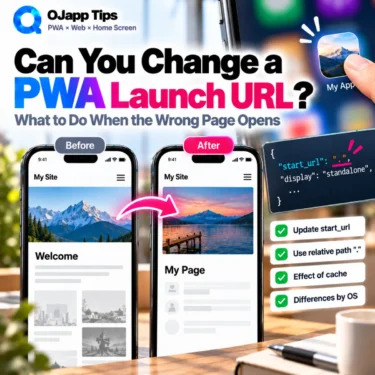
So can you edit an installed PWA afterward and change the URL that its icon launches?
In general, users cannot simply edit a PWA’s launch URL after installation in the same way they might edit a traditional bookmark.
The first thing to try is deleting the home screen entry and adding the correct page again. If it still launches somewhere else, the website’s PWA configuration may be responsible.
- 1 First, delete it and add the correct page again
- 2 What if it still opens the homepage?
- 3 start_url defines the PWA launch destination
- 4 Why would a website intentionally launch the homepage?
- 5 The user may think “I saved this page”
- 6 A page itself can also be designed as the entrance
- 7 Editing only the launch URL after installation is not normally available
- 8 What if reinstalling still does not fix it?
- 9 If you only want to save the URL, use a bookmark
- 10 A PWA and a bookmark can look similar without being the same thing
- 11 Developers should consider what the user thinks they saved
- 12 Try these steps when the wrong page opens
- 13 A home screen icon does not always mean “the page I saved”
First, delete it and add the correct page again
If you simply added the wrong page, the fix is straightforward.
- Remove the existing icon from the home screen.
- Open the page you actually want in the browser.
- Add that page to the home screen again.
If the page you want is:
https://example.com/products/coffee/open that exact product page before adding it again.
If the new icon now opens the correct page, the problem is solved.
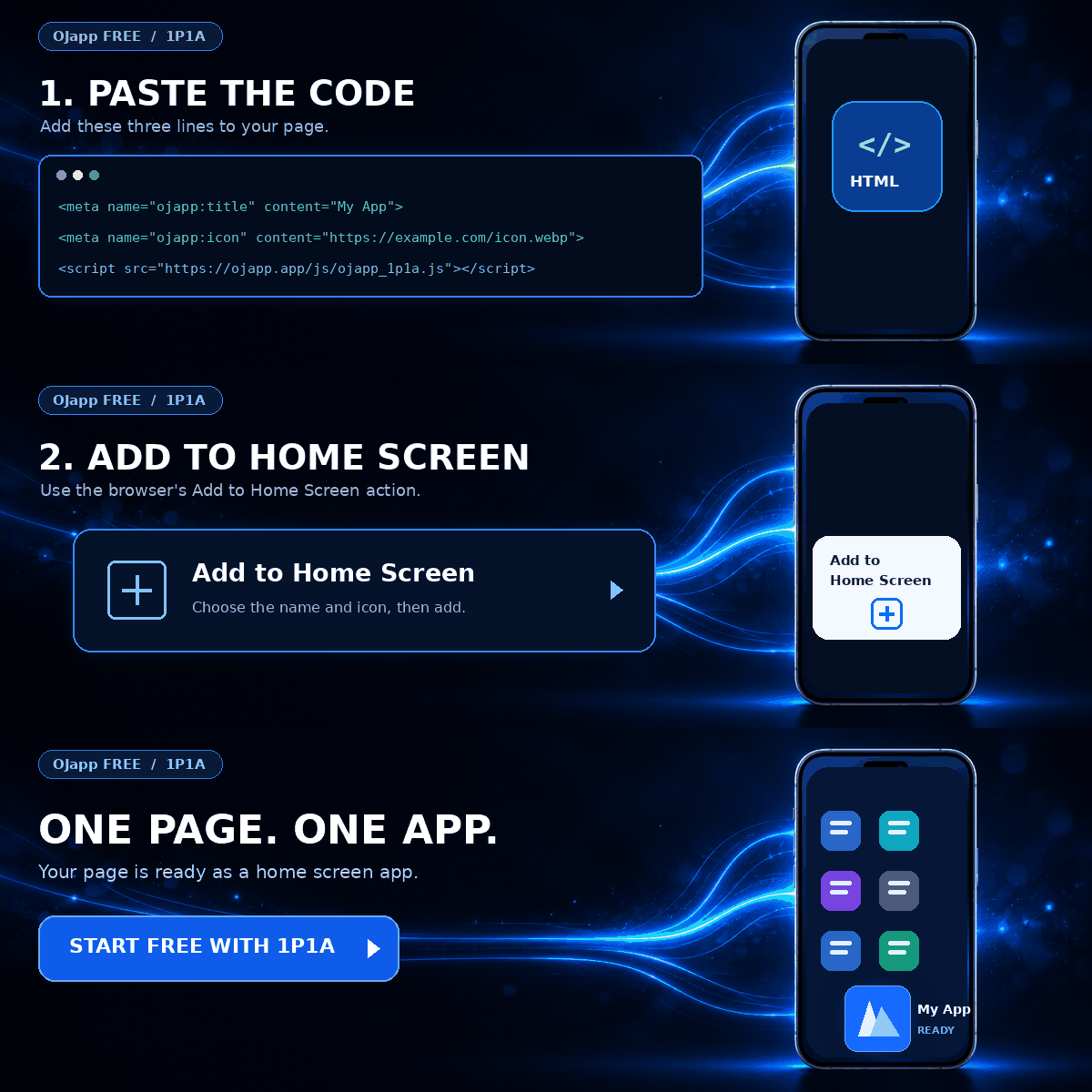
What if it still opens the homepage?
This is where things become more interesting.
You opened the correct page.
You added it from that page.
But tapping the new home screen icon still launches the homepage.
Open product page
->
Add to home screen
->
Tap icon
->
Homepage opens instead
At that point, it may not be a user mistake.
A PWA can define the URL it should open from the home screen using a Web App Manifest property called start_url.
 PWAs Can Do This: How to Add User-Specific Pages to the Home Screen
start_url defines the PWA launch destination
Consider a Web App Manifest like this:
{
  "name": "Example App",
  "start_url": "/",
  "display": "standalone"
}
Here, the site root / is defined as the application’s starting URL.
Depending on the site’s PWA architecture and browser behavior, a page added from deeper inside the site can therefore launch into that configured application entry instead.
The user did not choose that value after adding the icon.
It is part of the PWA design provided by the website through its Manifest.
Why would a website intentionally launch the homepage?
There is nothing inherently wrong with start_url: "/".
It can make perfect sense when the entire website is designed as one application.
Think of a social platform, webmail service, or another product where the whole service is the app.
Add from somewhere in the service
->
Treat the site as one app
->
Launch into the main application entry
This is close to the architecture I call 1S1A: One Site. One App.
The mismatch appears when the user believes they are saving the specific page currently on screen.
The user may think “I saved this page”
Most users are not going to inspect a Web App Manifest before adding something to their home screen.
If they are looking at a product page, a natural expectation is:
This product page
->
Add to home screen
->
This product page opens next time
The same expectation can apply to an article, booking page, or web tool.
But if the website is designed as one site-wide PWA with a fixed launch destination, the resulting behavior may be different.
This becomes easier to understand through the difference between 1S1A and 1P1A.
A page itself can also be designed as the entrance
Another architecture is to make the page being added become the useful home screen entrance.
One technique I use with 1P1A (One Page. One App.) combines a dynamically generated Manifest with start_url: ".".
{
  "name": "Page Name",
  "start_url": ".",
  "display": "standalone"
}
The important detail is that . is a relative URL resolved against the Manifest URL. Simply putting it into one static Manifest does not automatically mean “whatever document the user is currently viewing.”
The Manifest needs to be generated or located so that the relative URL resolves to the intended page.
OJapp’s page-level 1P1A implementation uses this idea to create page-specific entrances.
I explain the design in more detail in Why start_url: “.” Is So Useful for Page-Level PWAs.
Editing only the launch URL after installation is not normally available
What if the icon is already on the home screen?
Could you long-press it, open a settings screen, and edit:
Name
Icon
Launch URL
like a bookmark?
For an installed PWA, users generally do not get an editor that lets them rewrite the Manifest’s start_url.
If the launch destination is wrong for what you wanted, the normal first step is to remove the entry and add the intended page again.
What if reinstalling still does not fix it?
This is the most important troubleshooting point.
Suppose you try:
Remove home screen icon
->
Open intended page in browser
->
Add that page again
->
Open the new icon
->
Wrong page opens again
If the same thing keeps happening, repeating the process may not help.
The website may intentionally define a different PWA launch destination.
Because users cannot rewrite the site’s Manifest configuration, that behavior may simply be part of how that PWA is designed.
If you only want to save the URL, use a bookmark
So what can you do if the PWA does not preserve the page you wanted?
If your actual goal is simply:
Remember this URL
Open this exact page again later
a normal browser bookmark may be the better tool.
PWA and bookmarks have different roles.
With a PWA, the website can use the Web App Manifest to define properties such as the app name, icon, launch URL, and display mode.
A bookmark is fundamentally about the user saving a URL for later.
If the website’s PWA design does not match the entrance you want to preserve, there is no need to force the PWA model.
If saving that exact URL is the goal, a bookmark may fit the job better.
A PWA and a bookmark can look similar without being the same thing
From the home screen, a PWA icon can look very similar to a shortcut or saved website.
But a PWA has an application definition provided through its Web App Manifest.
That can include:
- application name
- icons
- launch URL
- display mode
- application navigation scope
That is why the URL the user was viewing and the entrance defined by the PWA do not always match.
I explain this distinction further in Is a Website Added to the Home Screen an App or a Bookmark?.
Developers should consider what the user thinks they saved
This is not only a user troubleshooting issue.
It is also a PWA design question.
If a product page tells users to add it to the home screen but the resulting icon launches the store homepage, the implementation may technically be working exactly as configured.
But the result can still conflict with the user’s expectation.
On the other hand, if the entire service is meant to behave as one application, launching into a central homepage or dashboard can be the right design.
The important question is not whether one start_url value is universally correct.
Ask what the user believes they are saving when they choose to add the page to their home screen.
Try these steps when the wrong page opens
If a home screen PWA opens somewhere other than the page you expected, this sequence is a useful way to troubleshoot it:
- Open the exact page you want in the browser.
- Remove the existing home screen entry.
- Add the page again from the intended URL.
- Open the new icon and check the launch destination.
- If it still opens another page, consider that the site’s PWA launch configuration may be fixed.
- If you only need to preserve the exact URL, save it as a browser bookmark instead.
You do not need to keep reinstalling the same PWA indefinitely.
The useful distinction is whether the problem is something you can correct as a user or something defined by the website’s PWA architecture.
A home screen icon does not always mean “the page I saved”
From the user’s perspective, adding something to the home screen can feel like saving the page currently being viewed.
But a PWA can have a launch destination defined by the website through start_url.
So if a different page opens, it does not necessarily mean you made a mistake.
First, remove it and add the intended page again.
If that does not change the result, the site’s PWA design may be controlling the destination.
And if your only goal is to keep that exact page for later, a normal bookmark may be the better solution.
A PWA is an application entrance designed by the site. A bookmark is a URL saved by the user. Understanding that difference makes the “Why does this icon open the wrong page?” problem much easier to explain.
Add OJapp Tips as a preferred source on Google
Make it easier to find OJapp Tips articles in Google Search.