
This site uses the original WordPress plugin OJapp PWA Marketing.
Each article can be added to your Home Screen with its own dedicated icon.
Whenever people talk about adding PWA support, the project somehow becomes much bigger than it needs to be.
Create a manifest.json. Write a Service Worker. Design a caching strategy. Add push notifications…
But in reality, many websites do not need all of that.
Sometimes you just want the page to be addable to the home screen and launch like an app.
So in this article, I want to look at what I call a “just add it” PWA: the smallest practical setup you can start with immediately.
- 1 You do not need every PWA feature from day one
- 2 A minimal PWA can start with manifest.json
- 3 But creating one manifest.json file is still surprisingly annoying
- 4 Think about the Service Worker only when you actually need it
- 5 The advantage of a “just add it” PWA
- 6 If even manifest.json feels like too much, finish it with one line
- 7 Start small, then grow it only when necessary
You do not need every PWA feature from day one
PWAs can support offline access, push notifications, custom caching, and many other features.
But you do not have to use all of them before you are allowed to call something a PWA.
For a normal blog or web tool, what you actually want at first may be much simpler:
- Let users add the page to the home screen
- Give it a dedicated name and icon
- Launch it in an app-like standalone view
- Open it directly next time without searching for the URL again
Even that small change can significantly improve the experience.
As I wrote in What Are the Benefits of PWA? Why “Being on the Home Screen” Is Enough in 2026, simply giving users a persistent home screen entry point can already be valuable in 2026.
A minimal PWA can start with manifest.json
The Web App Manifest is the basic entry point for a PWA.
A minimal configuration might look like this:
{
  "name": "My App",
  "short_name": "My App",
  "start_url": ".",
  "display": "standalone",
  "icons": [
    {
      "src": "/icon.png",
      "sizes": "512x512",
      "type": "image/png",
      "purpose": "any"
    }
  ]
}
In PWA LAB, I have repeatedly tested app names, launch URLs, display modes, and icons through the Manifest. Unless there is a specific reason to return users to another URL, start_url: "." has been a very practical default.
Then load the Manifest from the HTML:
<link rel="manifest" href="/manifest.json">At this point, the basic setup is already quite small.
 How to Make a PWA Feel Like a Native App: UX Tips for iPhone and Android
But creating one manifest.json file is still surprisingly annoying
The code itself is simple.
But when you actually implement it, there are still several small steps.
Create a file called manifest.json.
Add the app name and icon URL.
Upload it to the server.
Reference it from the page <head> using the correct path.
Then prepare the icon image as well.
None of this is particularly difficult, but if someone only wants to try PWA support, that one extra file can feel heavier than it should.
I ran into a ridiculous example of this while building PWA LAB.
<link rel="manifest" href="/leb/manifest.json">I typed leb instead of lab.
One character was enough to stop the Manifest from loading completely.
That kind of mistake made me realize that PWA itself is not always the difficult part. Creating files, placing them correctly, matching paths, and serving everything properly is often the annoying part.
Think about the Service Worker only when you actually need it
When people hear “PWA,” they often assume a Service Worker must be part of the initial setup.
But a Service Worker is something you should consider when you actually need offline behavior or custom network caching.
In PWA LAB, I tested Cache First, Network First, and Stale While Revalidate strategies. Once a Service Worker enters the picture, the number of decisions increases very quickly.
Caching is useful, but it is also one of the easiest places to get stuck. Updated files may not appear, old resources can remain cached, and debugging can become unexpectedly frustrating.
I explain the offline side in more detail in How PWA Offline Support Works: Service Workers, Cache API, and Files to Cache, but if your website does not need offline support, there is no reason to add that complexity on day one.
Start with home screen support. Add a Service Worker later if you need one.
That order is perfectly reasonable.
The advantage of a “just add it” PWA
The biggest advantage of this approach is that you do not have to turn PWA adoption into a major architectural decision.
The phrase “We are converting the site into a PWA” sounds like the beginning of a large development project.
But if the first goal is only home screen support, you can start extremely small.
- You do not have to rebuild the existing website
- You do not need a new backend
- You do not need a database
- You do not need user accounts
- You do not need push notification infrastructure
- You can avoid Service Worker cache problems entirely
And once home screen support exists, you can add more capabilities later only when they become useful.
Instead of building the final form first, build the entry point first.
I think that mindset makes PWA much easier to adopt.
If even manifest.json feels like too much, finish it with one line
To take the idea one step further, even creating manifest.json can feel unnecessary for a quick implementation.
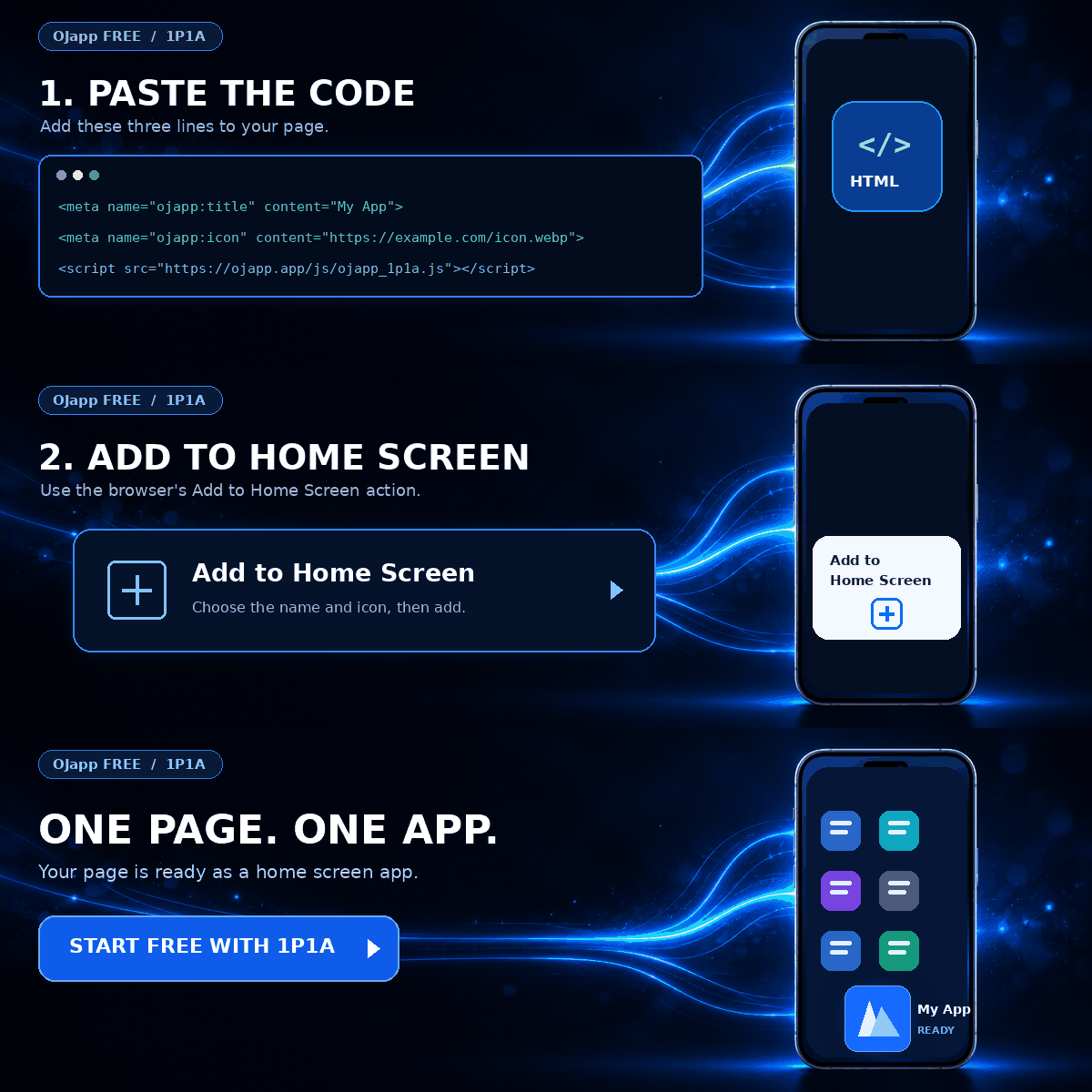
That is why OJapp also provides a way to generate the Manifest dynamically by adding a single JavaScript line to the page.
<script src="https://ojapp.app/js/ojapp_1p1a.js"></script>With this approach, you do not need to manually create and upload a manifest.json file.
The script generates a Manifest for the page using information such as the current URL and page title.
If necessary, you can override the app name and icon with a couple of meta tags:
<meta name="ojapp:title" content="My App">
<meta name="ojapp:icon" content="/icon.png">
The goal is not to make PWA more complicated or feature-heavy.
The goal is simply to remove the annoying steps between “I want home screen support” and “it works.”
Start small, then grow it only when necessary
You do not need to design offline support, push notifications, cache strategies, analytics, and every other PWA feature before getting started.
Start by adding a Manifest and making the page launchable from the home screen.
If that is enough, stop there.
If offline support becomes important later, add a Service Worker.
If you need more control over what becomes an app, then start thinking about approaches such as 1P1A and 1S1A.
You do not need to build the finished version on day one.
A “just add it” PWA that takes almost no time to implement.
It may sound almost too casual, but for a lot of websites, I think that is actually the more practical way to start.
Add OJapp Tips as a preferred source on Google
Make it easier to find OJapp Tips articles in Google Search.