
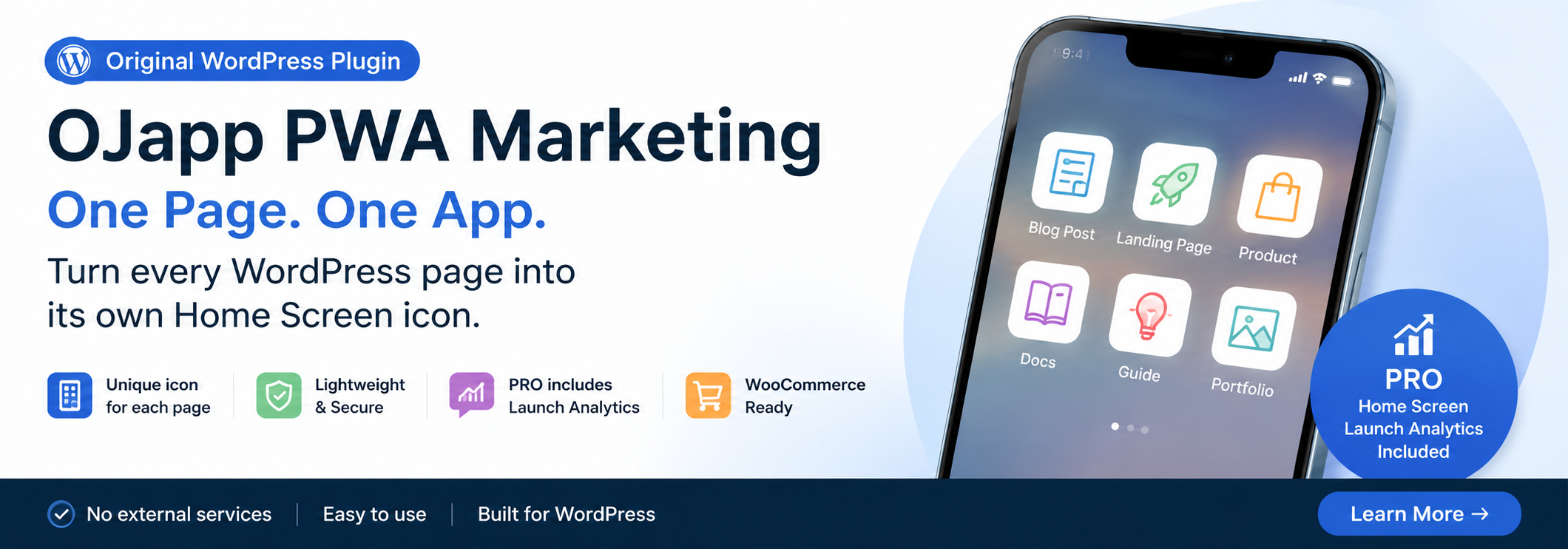
This site uses the original WordPress plugin OJapp PWA Marketing.
Each article can be added to your Home Screen with its own dedicated icon.
When you look up the benefits of PWAs, you often see explanations like these:
- They can work offline
- They can send push notifications
- They can be used like apps
- They can load faster
Of course, all of these are things PWAs can do.
But in 2026, when I think about the benefits of PWAs from the user’s perspective, I believe the biggest value is much simpler.
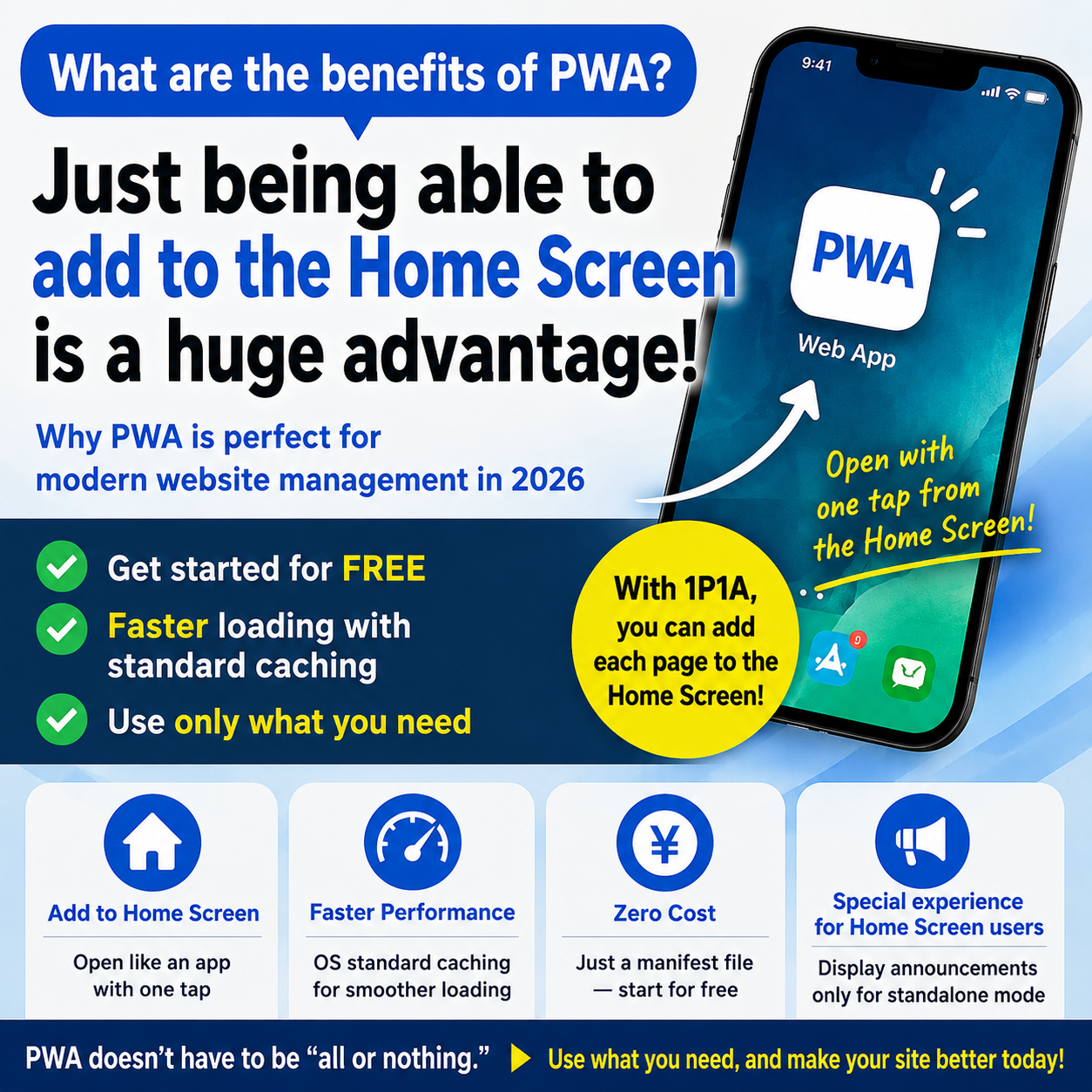
You can place frequently used websites or pages you want to revisit on your smartphone’s home screen and open them with a single tap next time.
There is no need to search again, dig through bookmarks, or navigate through URLs.
Just tap the icon on your home screen, and you can immediately return to the website you use.
What matters to users is not that “this website uses PWA technology,” but that it becomes a little more convenient the next time they use it.
And today, if that is the only experience you want to create, you do not need to build a complicated PWA.
- 1 The Biggest Benefit of PWA Is Being on the Home Screen
- 2 You Can Also Create an App-Like Experience Without the URL Bar
- 3 Returning from the Home Screen Fits the Web Naturally
- 4 You Can Create a Special Experience Only for Home Screen Users
- 5 WordPress Plugins Can Also Show Home-Screen-Only Messages
- 6 Think About Performance Separately from Service Workers
- 7 PWA Can Be Started for Free
- 8 With 1P1A, You Don’t Even Need to Create a Manifest File Yourself
- 9 Do You Really Need a Service Worker?
- 10 Do You Really Need Offline Support?
- 11 “PWA Can Send Push Notifications” Does Not Mean You Need Them
- 12 Use Only the Parts of PWA You Actually Need
- 13 You Can Add “This Page,” Not Just the Entire Website
- 14 Summary
The Biggest Benefit of PWA Is Being on the Home Screen
A normal website essentially lives inside the browser.
When you want to visit it again, you usually need to:
- Search for it on Google
- Find it in your bookmarks
- Look through your browsing history
- Enter the URL
Adding a PWA to the home screen changes this.
An icon appears on the home screen, and from then on, you only need to tap it.
Instead of:
Search
↓
Find the website
↓
Open the page
you get:
Home Screen
↓
Tap
↓
Open the page
Technically, this may seem like a small difference.
From a user experience perspective, however, it is a significant one.
The website changes from “somewhere you search for and visit” into a permanent entry point on your smartphone.
You Can Also Create an App-Like Experience Without the URL Bar
With a Web App Manifest, you can configure something like this:
{
  "name": "Example",
  "short_name": "Example",
  "start_url": ".",
  "display": "standalone",
  "icons": [
    {
      "src": "/icon.png",
      "sizes": "512x512",
      "type": "image/png"
    }
  ]
}
When display: "standalone" is specified and the PWA is launched from the home screen, supported environments can display it in a more app-like interface than a normal browser page.
The exact behavior differs between iPhone and Android, but both can provide an experience where the Web is launched directly from the home screen.
That alone can be a good reason to use PWA.
 PWAs Can Do This: How to Add User-Specific Pages to the Home Screen
Returning from the Home Screen Fits the Web Naturally
PWAs are often discussed as an alternative to native apps.
But they do not necessarily need to replace native apps.
For example:
- Blog posts you read frequently
- Product pages
- Booking pages
- Member pages
- Web tools
- User profiles
For pages like these, opening them directly from the home screen can be much more convenient than searching for them every time.
This is especially useful for web services that users may access repeatedly, but not often enough to justify installing a dedicated app from the App Store.
You can access them through a URL and then keep them on your home screen.
That lightweight nature is something the Web is particularly good at.
You Can Create a Special Experience Only for Home Screen Users
The benefit of being added to the home screen is not limited to making the next visit easier.
With a PWA, you can detect whether a user is browsing the website normally or launching it from an icon added to the home screen.
For example, JavaScript can check:
window.matchMedia('(display-mode: standalone)').matches
This allows you to create different experiences:
Normal browser visit
↓
Regular website

Launch from Home Screen
↓
Home-screen-specific experience
For example, you could:
- Show exclusive announcements only to users who launch from the home screen
- Display a “Thanks for adding us to your home screen” message
- Show information specifically for returning users
- Promote a limited-time campaign
- Guide users to new articles or recommended pages
In other words, you can create a direct benefit for the user for adding the website to their home screen.
If a website owner simply says, “Please add this to your home screen because it makes it easier for you to come back,” there may not be much motivation for the user.
But things change if you can provide an experience where:
“Opening it from the home screen gives me something a little more useful.”
Home screen placement can become more than just a shortcut. It can become a new touchpoint between the website and the user.
WordPress Plugins Can Also Show Home-Screen-Only Messages
The WordPress plugin I am developing, OJapp PWA Marketing, uses this mechanism in its PRO version.
It can detect when a page has been launched from the home screen and display messages that do not appear during normal browser visits.
For an e-commerce site, for example:
Thanks for visiting from your home screen. Here are this week’s recommended products.
For a blog:
We just published a new article.
For a local business:
Here’s what’s happening this week.
The important point is that using a PWA does not mean you must use push notifications.
Push notifications require permission from the user and allow the service to proactively send notifications.
This approach is different.
It allows you to show information when the user chooses to tap the home screen icon and visit the website.
You can communicate specifically with home screen users without adding more notifications to their phones.
I think this is one of the more interesting ways to use PWAs today.
Think About Performance Separately from Service Workers
PWAs are often associated with speed, but it helps to separate the different factors involved.
It is easy to assume that “there is no PWA performance benefit without a Service Worker.”
However, even without a Service Worker, launching a site from the home screen in standalone mode can improve the perceived experience.
Why It Can Feel Faster Even Without a Service Worker
In a normal browser session, the browser also has to manage other tabs, the address bar, toolbars, and its surrounding interface.
A 1P1A page launched from the home screen in standalone mode runs in a more isolated app-like environment.
This can reduce interference from other browser tabs and remove unnecessary browser UI, making scrolling and interaction feel more responsive.
The Real Role of the Service Worker
A Service Worker, on the other hand, controls network requests and file loading after the app has launched.
The distinction can be thought of like this:
- 1P1A / standalone mode: creates a more isolated, app-like environment and reduces browser UI overhead
- Service Worker: manages caching and offline behavior to reduce network delays
A practical approach is:
Start with 1P1A to create a dedicated home screen icon and standalone experience. If you later need more aggressive network-level performance or offline support, add a Service Worker.
PWA Can Be Started for Free
Another major benefit is the cost of implementation.
Building a native app means considering iOS and Android development, builds, app store submissions, updates, and more.
If your goal is simply to support the home screen with PWA technology, none of that is necessary.
The Web App Manifest is part of the Web platform.
You can get started by adding a Manifest to your existing website and configuring the necessary information.
And for a lightweight setup focused on home screen support, even a Service Worker is not required.
In other words:
PWA does not automatically mean an expensive, large-scale development project.
You can add it while continuing to use your existing website.
With 1P1A, You Don’t Even Need to Create a Manifest File Yourself
OJapp makes this even simpler with 1P1A (One Page. One App.).
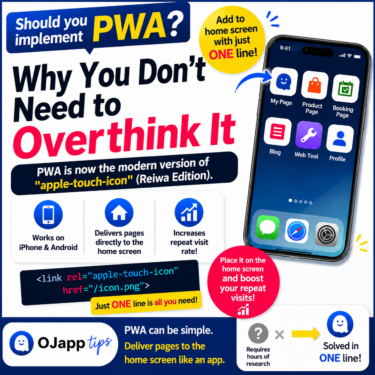
Normally, you would prepare a manifest.json file.
With 1P1A, you simply add one script to the page:
<script src="https://ojapp.app/js/ojapp_1p1a.js"></script>
That is enough to dynamically generate a Manifest for that page.
If you want the home screen icon to be different from the site icon, you can specify one like this:
<meta name="ojapp:icon" content="https://example.com/icon.png">
For a blog, it could be the article’s featured image.
For an e-commerce site, it could be the product image.
For a profile, it could be the person’s profile image.
This allows each page to have a meaningful icon on the home screen.
On WordPress, the OJapp PWA Marketing plugin provides a similar page-by-page PWA approach.
In both cases, you can start with home screen support for free.
Do You Really Need a Service Worker?
This is a good point to reconsider the role of the Service Worker.
PWA articles often explain manifest.json and Service Workers as if they always come as a pair.
But depending on your goal, you may not need a Service Worker at all.
If your only objective is:
“I want users to be able to open this web page from their home screen.”
then there is no need to build a complicated Service Worker.
So when is one useful?
A typical example is offline support.
If a web app must remain usable even without an internet connection, a well-designed Service Worker caching strategy can be extremely valuable.
For example, this could apply to field tools used for work or apps designed for environments with unreliable connectivity.
For those use cases, it is worth designing properly.
Do You Really Need Offline Support?
But what about ordinary websites?
Does a blog really need to be completely readable offline?
Does an e-commerce product page need to work offline?
Even if a booking page loads offline, the user will eventually need a connection to complete the booking.
Not every website needs offline support.
Adding a Service Worker where it is unnecessary can simply create more things to manage, including cache invalidation and debugging.
Use it when you need it. Skip it when you don’t.
That is enough.
“PWA Can Send Push Notifications” Does Not Mean You Need Them
The same applies to push notifications.
PWAs can use Web Push in supported environments.
It is a useful feature.
But the fact that you technically can send notifications does not mean users actually want them.
Smartphones are already filled with notifications from email, social media, news, shopping apps, games, and many other services.
Adding even more notifications from a website does not automatically improve the user experience.
If notifications are central to your service, use them.
If they are not, there is no need to force them into the product.
Using PWA does not mean you must implement push notifications.
Use Only the Parts of PWA You Actually Need
In the end, you do not need to use every benefit PWA offers.
Want it on the Home Screen
        ↓
Manifest

Want offline support
        ↓
Service Worker + Cache

Want notifications
        ↓
Web Push
Simply add the technologies required for each goal.
There is no need to build an all-in-one PWA from the beginning.
For most modern websites, I think it makes more sense to start with the lightest option:
Make the website available on the home screen.
That is enough for the first step.
You Can Add “This Page,” Not Just the Entire Website
PWA also gives you different ways to design the app experience.
A conventional PWA usually treats the entire website as one app.
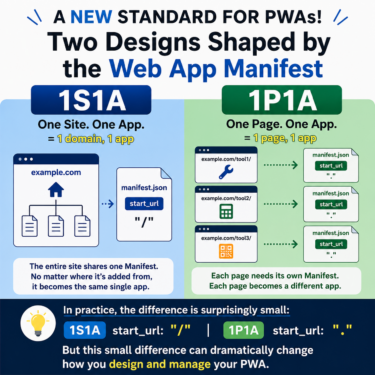
I call this 1S1A (One Site. One App.).
With 1P1A (One Page. One App.), individual pages can instead be added to the home screen.
1S1A
Website → One App

1P1A
Article A → App A
Article B → App B
Product A → App A
If you want users to interact with the website as a whole, 1S1A may be the better choice.
If you want them to keep a specific article, product, profile, or tool on their home screen, 1P1A may be a better fit.
You can choose based on what you want the PWA to accomplish.
Summary
PWAs offer many features.
But you do not need to use all of them.
For me, the clearest and most practical benefit remains extremely simple:
You can put the Web on the home screen.
Users can return directly from their home screen without going through search results or bookmarks.
That alone changes how people can access a website.
And in 2026, you do not need a large development project just to create that experience.
Start with a Manifest.
If offline support is genuinely necessary, add a Service Worker.
If notifications are genuinely useful, add Web Push.
Use only what you need.
PWA can look complicated if you think of it as a technology for building a fully featured web app.
But if you think of it as a way to create an entry point to the Web on the home screen, it becomes much simpler.
With 1P1A or the WordPress plugin, that first step can be started for free.