
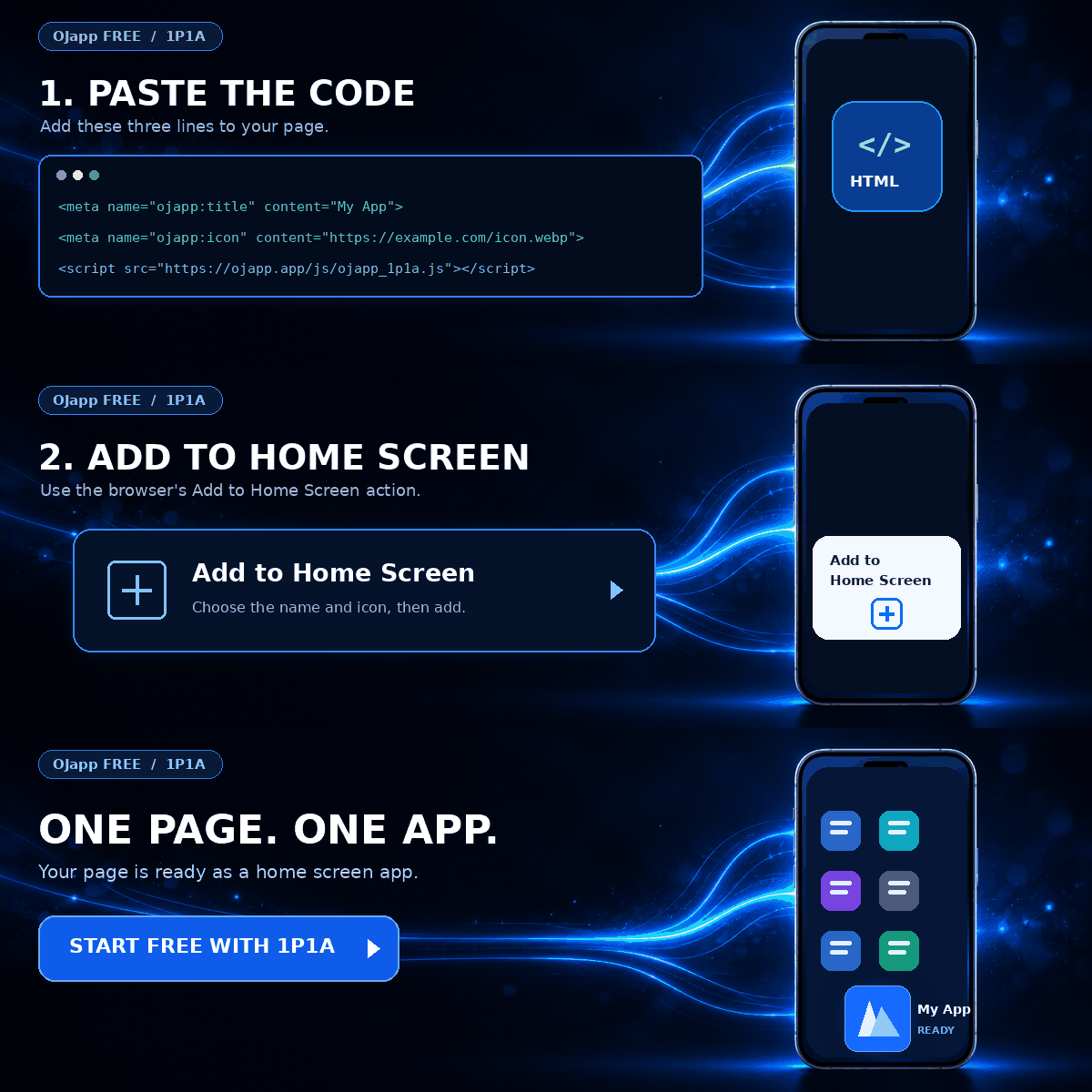
This site uses the original WordPress plugin OJapp PWA Marketing.
Each article can be added to your Home Screen with its own dedicated icon.
In the previous article, I revisited the old rule that a PWA requires a Service Worker.
In current Chrome, the conclusion is clear: a PWA can be installable without a Service Worker.
That leads to a more interesting question.
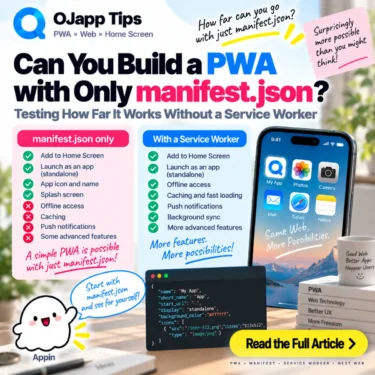
If we remove the Service Worker completely, how much of a PWA can we build with the Web App Manifest alone?
Can it be installed? Can it have its own icon? Can it launch in standalone mode? Can we control where it starts?
Using configurations I have tested in PWA LAB, let’s separate what the Manifest can already do from the features that actually require a Service Worker.
- 1 Start by removing the Service Worker completely
- 2 Chrome can install it without a Service Worker
- 3 The Manifest can define the home screen icon
- 4 The application name also comes from the Manifest
- 5 standalone display works without a Service Worker too
- 6 start_url is also controlled by the Manifest
- 7 Everything so far works without a Service Worker
- 8 So what can we not do without a Service Worker?
- 9 A Manifest alone does not make the PWA offline-capable
- 10 Push notifications are not created by the Manifest either
- 11 Normal web features still work without a Service Worker
- 12 Normal browser caching does not disappear either
- 13 For lightweight PWAs, a Manifest-centered approach can be enough
- 14 1P1A also benefits from this lightweight model
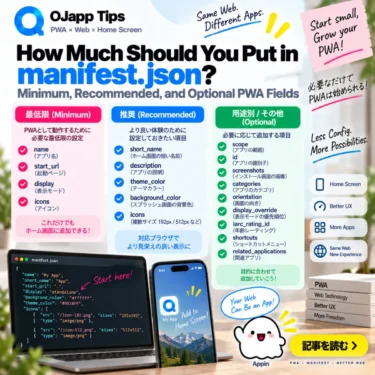
- 15 The Manifest can do more than it first appears
- 16 Build the features you need instead of chasing a PWA checklist
Start by removing the Service Worker completely
Let’s use a very small setup.
The HTML references a Web App Manifest:
<link rel="manifest" href="/manifest.json">There is no Service Worker registration:
// We do not add this
navigator.serviceWorker.register('/sw.js');
Then we create a Manifest:
{
  "name": "My PWA",
  "short_name": "My PWA",
  "start_url": ".",
  "display": "standalone",
  "icons": [
    {
      "src": "/icon-192.png",
      "sizes": "192x192",
      "type": "image/png",
      "purpose": "any"
    },
    {
      "src": "/icon-512.png",
      "sizes": "512x512",
      "type": "image/png",
      "purpose": "any"
    }
  ]
}
Other installability conditions, such as a secure HTTPS context, are assumed to be satisfied.
That is the entire PWA-specific setup for this experiment.
Chrome can install it without a Service Worker
In PWA LAB, I have confirmed that configurations like this can be installed in supported Chrome environments without registering a Service Worker.
Manifest present
Service Worker absent
->
Installable
As covered in Does a PWA Require a Service Worker in 2026?, current installability requirements no longer make a Service Worker mandatory.
That already makes a modern minimal PWA much lighter than many older tutorials suggest.
 What PWAs Can and Cannot Do on iOS in 2026: A Complete Practical Guide
The Manifest can define the home screen icon
The icons array works independently of a Service Worker.
"icons": [
  {
    "src": "/icon-192.png",
    "sizes": "192x192",
    "type": "image/png",
    "purpose": "any"
  },
  {
    "src": "/icon-512.png",
    "sizes": "512x512",
    "type": "image/png",
    "purpose": "any"
  }
]
You can therefore provide dedicated images for the installed PWA without implementing any Service Worker logic.
If you also want an Android-oriented maskable icon, the Manifest can include one:
{
  "src": "/icon-maskable-512.png",
  "sizes": "512x512",
  "type": "image/png",
  "purpose": "maskable"
}
The visual identity of the home screen entry is primarily a Manifest concern.
The application name also comes from the Manifest
The same applies to the app name.
"name": "Image Compressor",
"short_name": "Compressor"
name and short_name let the PWA have an application identity that is separate from the HTML <title>.
Again, none of this requires a Service Worker.
standalone display works without a Service Worker too
Another important Manifest field is display.
"display": "standalone"In supported environments, this allows the installed PWA to launch with standalone presentation rather than as an ordinary browser tab.
I have used this in PWA LAB configurations that do not register a Service Worker.
Home screen icon
->
Tap
->
Launch in standalone mode
So even this very recognizable part of the PWA experience does not depend on a Service Worker.
start_url is also controlled by the Manifest
The launch destination is defined with start_url.
"start_url": "/app/"A site-wide PWA might use:
"start_url": "/"In my 1P1A experiments, I often use:
"start_url": "."There is an important detail here. The dot is a relative URL resolved against the Manifest URL. It is not a special command meaning ‘whatever page happens to be open right now.’
That is why page-level dynamic Manifest generation matters when using this pattern to represent the current page.
For more detail, see Why start_url: “.” May Be the Best Choice for Page-Level PWAs.
Everything so far works without a Service Worker
Here is the important part:
| Feature | Without a Service Worker |
|---|---|
| PWA installation in Chrome | Possible |
| Home screen icon | Possible |
| Application name | Possible |
| start_url | Possible |
| standalone display | Possible |
| fullscreen display request | Possible |
If your goal is to place a web experience on the home screen with its own identity and launch it with app-like presentation, the Manifest can already do a surprising amount.
So what can we not do without a Service Worker?
This is where the boundary becomes clearer.
The Manifest describes things such as application identity, icons, launch behavior, and presentation.
It does not intercept network requests.
Without a Service Worker, you cannot build a Service Worker-controlled offline cache that responds when the network is unavailable.
No network
->
Service Worker returns cached response
If you want that behavior, a Service Worker is part of the implementation.
A Manifest alone does not make the PWA offline-capable
This distinction is easy to miss because the installed result can already look very app-like.
It has an icon.
It launches independently.
It may use standalone presentation.
But none of that automatically creates offline support.
A Manifest does not define a caching strategy.
If content must remain reliably available without a network connection, that behavior needs to be implemented separately, commonly with a Service Worker and Cache API.
Push notifications are not created by the Manifest either
Push is another example.
There is no Manifest field that turns a normal web page into a complete Web Push implementation.
Web Push involves a Service Worker along with the Push API, notification handling, subscriptions, and server-side sending infrastructure.
A useful mental split is:
Manifest
->
Home screen application identity and launch information

Service Worker and related APIs
->
Offline, push, and background capabilities
Normal web features still work without a Service Worker
Removing the Service Worker does not remove the rest of the web platform.
JavaScript still works.
localStorage still works.
The page can call APIs.
Normal web authentication can still work.
Launching from a home screen does not move the application onto a completely different technology stack.
It is still the web underneath.
Normal browser caching does not disappear either
No Service Worker also does not mean no caching at all.
Browsers already implement HTTP caching for normal websites.
A Service Worker adds a programmable layer where developers can intercept requests and build explicit strategies using APIs such as Cache API.
Normal web page
->
Standard browser caching

With a Service Worker
->
Additional programmable network and cache control
Those are different concepts.
For lightweight PWAs, a Manifest-centered approach can be enough
Once the features are separated like this, it becomes easier to see that different PWAs need very different architectures.
Consider use cases such as:
- keeping a profile on the home screen
- returning quickly to a specific article
- launching an online web tool
- opening a product page directly
- keeping a booking page one tap away
These do not automatically require a complex Service Worker.
You can first create the home screen entrance with the Manifest.
Then add other capabilities only when the product needs them.
1P1A also benefits from this lightweight model
This fits naturally with 1P1A (One Page. One App.).
Instead of turning the entire site into one large application, individual pages can have their own name, icon, and launch URL.
Page A
->
Icon A
->
Launch Page A

Page B
->
Icon B
->
Launch Page B
If the goal is simply to make a specific page directly accessible from the home screen, defining that entrance is the first requirement.
Offline support can be added later if that page actually needs it.
The Manifest can do more than it first appears
Older PWA tutorials can make it seem as if development only really begins after writing a Service Worker.
But when the responsibilities are separated in a modern environment, the Manifest already handles much of the basic home screen application experience.
Name
Icon
Launch URL
Display mode
->
Web App Manifest
Meanwhile:
Offline behavior
Advanced cache control
Push
Background capabilities
->
Service Worker and related APIs
Build the features you need instead of chasing a PWA checklist
The word PWA can make it sound as if there is one fixed finished architecture.
In practice, it is often more useful to think about adding web capabilities as needed.
Need a home screen entrance? Start with the Manifest.
Need offline support? Add a Service Worker.
Need Push? Build the Push infrastructure.
Need all of them? Use all of them.
A Web App Manifest alone can already take you as far as an installable, named, icon-based, app-like home screen entrance in supported environments.
That means a PWA can start much smaller than many older tutorials suggest.
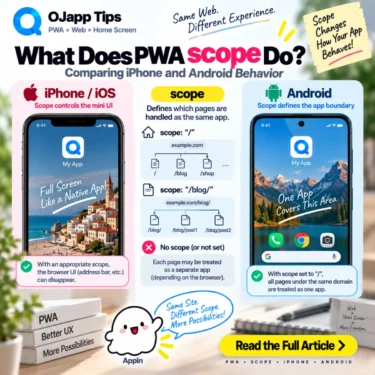
Next, I will look at one of the most confusing Manifest fields: scope, including why its behavior becomes especially interesting when comparing iPhone and Android.
Add OJapp Tips as a preferred source on Google
Make it easier to find OJapp Tips articles in Google Search.