
This site uses the original WordPress plugin OJapp PWA Marketing.
Each article can be added to your Home Screen with its own dedicated icon.
- 1 What PWAs Can and Cannot Do on iOS in 2026: A Complete Practical Guide
- 1.1 Conclusion: iOS PWAs work, but they are not the same as Android PWAs
- 1.2 What iOS PWAs can do
- 1.3 short_name matters on iOS too
- 1.4 start_url works on iOS, but dynamic pages need careful design
- 1.5 scope is the key to the iOS app-like experience
- 1.6 standalone display feels very immersive
- 1.7 Icons can be customized, but the priority rules are tricky
- 1.8 Column: Is “prevent screen lock with PWA” really just JavaScript?
- 1.9 Things iOS PWAs can do conditionally
- 1.10 Things you should not expect too much from on iOS
- 1.11 Separate your mental model for iOS and Android
- 1.12 The right attitude for PWA development in 2026
- 1.13 What I learned through OJapp and Petal
- 1.14 Related articles
- 1.15 Summary: PWA has become a mature technology with clearer use cases
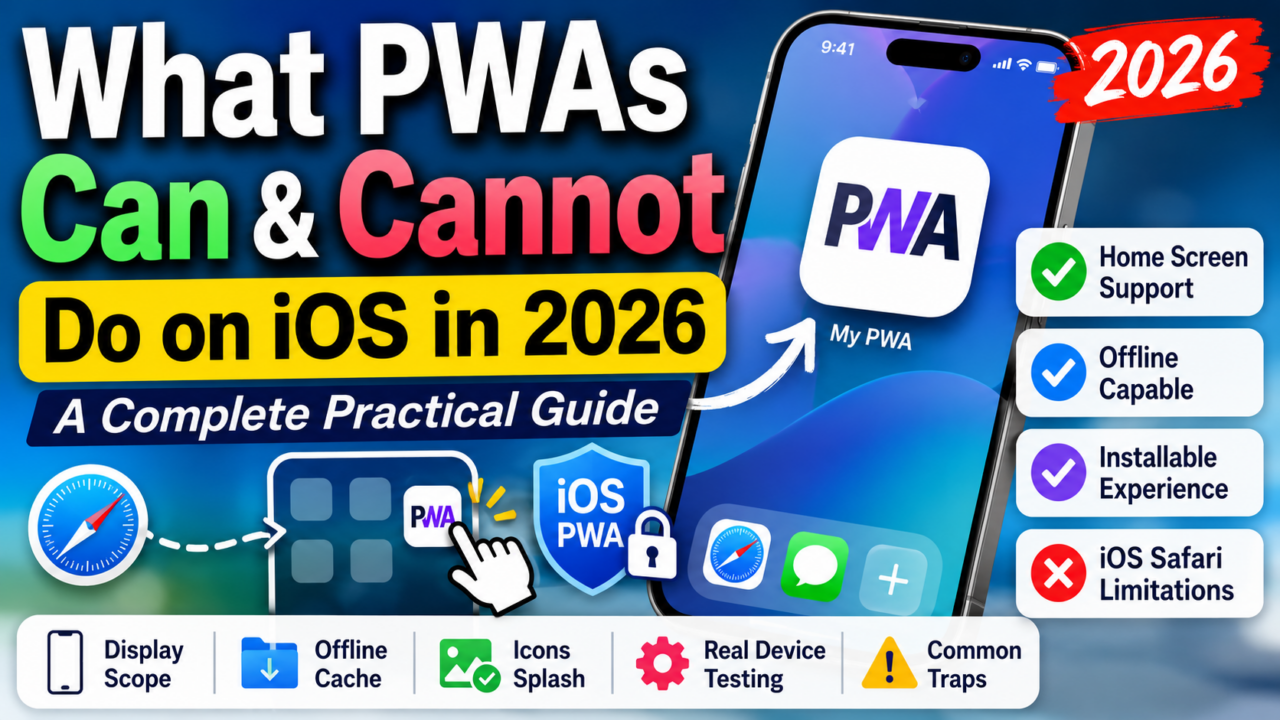
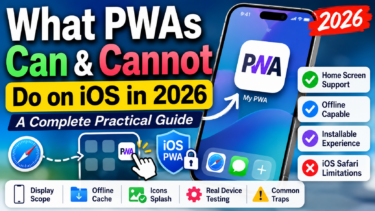
What PWAs Can and Cannot Do on iOS in 2026: A Complete Practical Guide
This article is a refreshed 2026 remake of a previously published guide about PWAs on iOS. It was revised on June 5, 2026. Because this area changes quickly, I rechecked the real behavior of Safari and iOS and reorganized only the practical knowledge that still matters today.
“So, how far can PWA actually go on iPhone?”
PWAs, or Progressive Web Apps, became popular as a way to make websites feel closer to smartphone apps. But when it comes to iPhone and iOS, opinions have always been split.
“PWAs do not work properly on iOS.” “Safari has too many limitations.” “It is completely different from Android.” A few years ago, those negative opinions were honestly almost 100% true.
However, after testing PWAs repeatedly on real devices in the current 2026 environment, I strongly feel that this view needs an update.
My conclusion is this: iOS PWAs are not the same as Android PWAs. But the core features we actually need now work surprisingly well.
At this point, simply saying “PWAs are useless on iPhone” is a bit too rough. Adding a site to the home screen, launching it without the address bar, and using it as a standalone app-like experience is already practical enough for real use.
In this article, I will break down what PWAs can do on iOS in 2026, what they can do with conditions, and what you should not expect too much from, based on real testing and a developer’s very practical point of view.
Conclusion: iOS PWAs work, but they are not the same as Android PWAs
First, here is the most important point.
On iPhone, the basic PWA features do work. Add to Home Screen, app-like launch without an address bar, start_url, scope, icon settings, and Service Worker-based cache control are not dead.
So giving up and saying “nothing works on iOS” is wrong.
However, if you build your manifest.json with the same mindset as Android Chrome, you will probably fall into a deep swamp. Android tends to interpret the manifest in a much more direct way. iOS, on the other hand, still carries Apple’s older WebClip culture and Safari-specific behavior.
So the realistic 2026 boundary is this: iOS PWAs are very practical as lightweight web app entrances, but you should not expect the exact same full PWA experience as Android.
What iOS PWAs can do
First, here are the features that you can realistically count on in current iPhone Safari-based environments.
- Users can add the site to the home screen from Safari’s Share menu
- The app can launch quickly from its own home screen icon
- It can open in an app-like standalone view without the address bar
short_namecan be used for the short label under the home screen iconstart_urlcan control the first page opened at launchscopecan control which URL range behaves as the app- When users move outside the scope, Safari can show a mini browser UI automatically
- Normal HTML, CSS, JavaScript, and many modern Web APIs work properly
If these parts work, that is already enough to feel like an app for many use cases.
Especially because the address bar disappears and the page appears as an independent window in the multitasking screen, ordinary users are much less likely to feel that they are just opening a website in a browser.
For services like OJapp or Petal, where the idea is to let users place a URL on the home screen, this basic set alone has huge value.
 PWAs Can Do This: How to Add User-Specific Pages to the Home Screen
short_name matters on iOS too
The short_name defined in manifest.json is properly reflected as the name under the home screen icon on iPhone.
{
 "name": "OJapp PWA LAB (Official)",
 "short_name": "PWA LAB"
}
This may look small, but it matters a lot for UX design.
Since the icon is meant to live on the home screen, a name that is too long and gets cut off with “…” can instantly make the app feel suspicious or unfinished.
Because this setting works on iPhone too, you can intentionally provide a clean, short name that fits well on the home screen.
start_url works on iOS, but dynamic pages need careful design
start_url controls which URL opens when the user taps the home screen icon. This also works on iOS.
For example, even if the user adds the site to the home screen while viewing a lower-level page, you can force the next launch to always begin from a dedicated /dashboard or /app-top.
However, if your product uses individual pages or user-specific dynamic content, fixing the start URL too strongly can create a bad experience.
For example, a user may think they pinned their favorite individual page to the home screen, but every time they launch it, they are sent back to the general top page.
That feels wrong.
So for products like OJapp or Petal, where the specific URL itself is the entrance, you need to optimize paths carefully based on the product experience.
scope is the key to the iOS app-like experience
When building an iOS PWA for real use, scope is one of the most important settings to design carefully.
It defines which URL range inside the domain should be treated as part of the app.
{
 "start_url": "/app/dashboard/",
 "scope": "/app/"
}
This scope setting does work on iOS. It is not ignored.
While the user stays inside the scoped pages, the app keeps the clean standalone view without an address bar.
But when the user moves outside the scope, such as to /blog/ or an external link, iOS automatically shows a small Safari-style browser UI.
This behavior is actually useful.
It helps users understand that they have moved outside the app-like area.
If you want to turn the entire same-domain experience into an app, you can use a wide scope like scope: "/".
If you want to isolate only a small lightweight tool, use something like scope: "/lab/".
This is a strategic UX decision, not just a technical setting.
standalone display feels very immersive
By setting display: "standalone" in manifest.json, iPhone can create a standalone window without the normal browser frame.
Historically, this area is tied to Apple’s older apple-mobile-web-app-capable meta tag, and the background is a bit messy.
But on current iOS, the manifest setting alone is practical enough in many cases.
The visual immersion can feel very close to a native app.
That said, you should be careful about expecting Android-style detailed display modes on iOS.
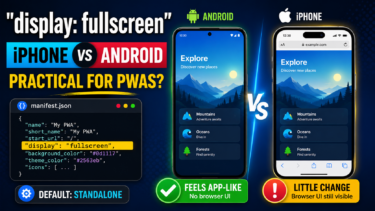
Values like fullscreen, which attempts to hide even the status bar, and minimal-ui, which keeps only a small navigation UI, are not something I would rely on for iPhone.
For iOS, the safest default is basically standalone.
Icons can be customized, but the priority rules are tricky
On iOS, you can customize the home screen icon.
But this is one of the areas where you are most likely to say, “Why is it doing that?”
In some cases, iOS reads the modern icons array in manifest.json.
However, Safari has a strong habit from its older behavior: if an apple-touch-icon is written in the HTML header, it can take priority over the manifest icon.
<link rel="apple-touch-icon" href="/assets/images/apple-icon.png">For a single fixed web app, this is fine. One line can make the icon appear cleanly.
But for a special design like OJapp or Petal, where each page or each user should generate a different home screen icon, this behavior becomes a trap.
If a shared fixed apple-touch-icon remains in the HTML, iPhone may keep using that fixed icon even if the manifest points to a user-specific icon URL.
So icon control on iOS is not a clean “just write the manifest and relax” area.
It is still a very practical, muddy part of PWA development.
Column: Is “prevent screen lock with PWA” really just JavaScript?
Here is a small behind-the-scenes note about a hidden popular PWA feature: preventing the screen from sleeping or auto-locking.
Technical blogs often describe the Screen Wake Lock API in a shiny way, like “PWAs can prevent the screen from locking.”
But if you look at the technical reality, the honest answer is: this is not really a special PWA-only feature. It is just a standard browser JavaScript Web API.
It does not use a special PWA language. It does not run on a native layer like an App Store app.
It is the same kind of JavaScript we already run in browsers.
So why is it often searched for and talked about as a strong PWA feature?
The reason is simple: if the address bar is visible and it looks like an ordinary browser page, preventing sleep does not feel very app-like.
- Place an icon on the home screen using
manifest.json - Launch it in a standalone app-like view without the browser frame
- Run the screen wake lock JavaScript behind that app-like space
When these three things work together, the user experiences it as “Oh, this feels like an app, and the screen does not turn off.”
That is why it is often packaged and talked about as a PWA feature, even though the core mechanism is a Web API.
For a long time, the Screen Wake Lock API had a terrible bug where it did not work well inside home screen PWAs on iOS.
But as of 2026, with the iOS 18.4 update, Apple finally fixed this bug, and it now works properly inside PWAs.
For lightweight recipe tools, timers, QR code payment screens, and similar use cases, this is now one of the best JavaScript tricks to add.
Things iOS PWAs can do conditionally
Next, here are features that are not impossible, but need careful design because of OS behavior and limitations.
- Asset caching with Service Worker
- Partial offline support that does not depend on full offline storage
- Web Push notifications
- Limited background-style data handling
These are not things you need to give up just because it is iOS.
But you need to decide how far you want to rely on them.
For example, Service Worker caching works on iOS.
However, storage persistence is not as strong as Android. If the user does not access the app for weeks, iOS may clean up cached data unexpectedly.
So it is not realistic to build a heavy iOS PWA that downloads gigabytes of data and depends on complete offline availability.
On the other hand, caching lightweight assets such as HTML, CSS, and JavaScript to speed up launch, avoid error screens during temporary network loss, or support browser-only tools like OJ-Pass is very practical.
Web Push notifications are also supported on iOS, but the conditions are strict.
You cannot casually show a notification permission popup from the browser like on Android.
The user must have added the PWA to the home screen, and the notification permission dialog must be triggered through a clear user action inside the app, such as tapping a button to turn notifications on.
If your service depends heavily on notifications, iOS can become difficult to operate.
That is why products like Petal, which intentionally avoid stealing the user’s time with notifications, can actually match the character of PWAs beautifully.
Things you should not expect too much from on iOS
As of 2026, here are the things that may look nice in specifications or Android examples, but are better not to expect too much from on iPhone.
- Browser-led one-tap install prompts like Android Chrome
- Full hiding of the status bar using
display: fullscreen - Strong forced screen orientation control with
orientation - Perfect automatic maskable icon cropping optimized for Android behavior
Some of these are technical limitations, but the biggest wall for iOS PWAs is actually UX.
On Android, the browser can show a friendly “Add this app to your screen?” style prompt.
On iOS, you cannot do that.
The user must open Safari’s Share button, scroll through the menu, and tap “Add to Home Screen.”
This requires a surprisingly deep level of user knowledge.
No matter how elegant your code is, your PWA does not really begin its life until the user places it on the home screen.
That is why, when targeting iOS, onboarding design matters more than endlessly tweaking the manifest.
You need to gently teach users how to add the page to the home screen.
Separate your mental model for iOS and Android
The biggest mistake in PWA development is treating every OS as the same cross-platform environment.
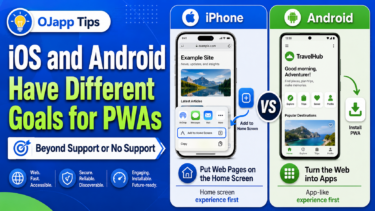
On Android, PWAs are strongly backed by Google and can behave almost like rivals to native apps.
Manifest settings such as theme color, fullscreen display, and orientation are reflected much more directly.
On iOS, a PWA is better understood as “Safari, the ultimate browser, borrowing a special seat on the home screen and removing the address bar frame.”
It is still fundamentally the Web, with Apple’s WebClip-style history and behavior running beside it.
The same manifest file can produce very different behavior depending on the OS.
If you do not understand this gap, you will end up in endless debugging loops: “Why does only iPhone keep the old icon?” “Why is the orientation ignored?”
I also learned this the hard way through PWA LAB, repeatedly writing code, breaking it on real devices, and slowly understanding the real separation between the two worlds.
The right attitude for PWA development in 2026
The most realistic and powerful approach today is this:
- Do not force PWAs to fight as complete replacements for native apps
- Use the Web’s biggest strength: lightweight distribution through URLs
- Polish the three high-impact basics:
standalone,scope, andstart_url - For iOS, do not ignore legacy settings like
apple-touch-iconjust because modern PWA specs exist - Instead of stuffing in every feature, focus on subtractive UX: lightweight tools, personal profile pages, forms, and checklists
Some experiences are not heavy enough to justify app store review or forcing users to download a large native app.
But they are also too important to be buried deep inside browser bookmarks.
For these “just the right distance” entrances that users can open with one tap in daily life, PWA is still one of the strongest technologies available.
What I learned through OJapp and Petal
Through building and operating OJapp and Petal, and testing them on real devices every day, my view of PWAs changed a lot.
I no longer see PWA as a grand technology for generating apps.
I see it more as the smartest shortcut technology for sliding any URL onto a user’s smartphone home screen.
OJapp is a platform for turning websites and personal pages into app-like entrances on the home screen.
Petal takes this further by letting users place someone’s digital card or important personal page on the home screen, not by forcing them to install a heavy service, but by letting that person’s page live there quietly like a favorite photo.
Instead of flashing notifications and pulling attention away, the user opens the familiar place from the home screen icon at the moment they actually want to use it.
This combination of web-like lightness and accessibility is the real strength of PWAs, and it is something native apps cannot easily copy.
Related articles
If you want to review the basic structure and benefits of PWAs, read What Is a PWA? A Simple Explanation of How Websites Become App-Like on Smartphones.
For concrete manifest.json parameters and Service Worker setup, How to Build a PWA: manifest.json, Service Worker, and Home Screen Support explains the process with source code.
If you want to understand the historical background of WebClip and why iPhone behaves differently, PWA vs WebClip: Which Should You Use on iPhone? is also useful.
Summary: PWA has become a mature technology with clearer use cases
As of 2026, iOS PWAs are definitely not dead or useless.
Home screen support, standalone display, scope-based app boundary control, and the latest OS fixes for Wake Lock inside PWAs are all mature enough for practical use.
However, if you build casually while expecting the exact same behavior as Android, iOS-specific priorities and WebClip habits will trip you up.
The important thing is to understand the character of each OS and design separately.
PWA is not over.
The old hype has faded, and its real use cases have become clearer.
It is now one of the best technologies for subtractive UX: using the lightness of the Web to create beautiful entrances on the user’s home screen.
If you understand that essence, PWA is still one of the strongest practical development approaches in 2026.