
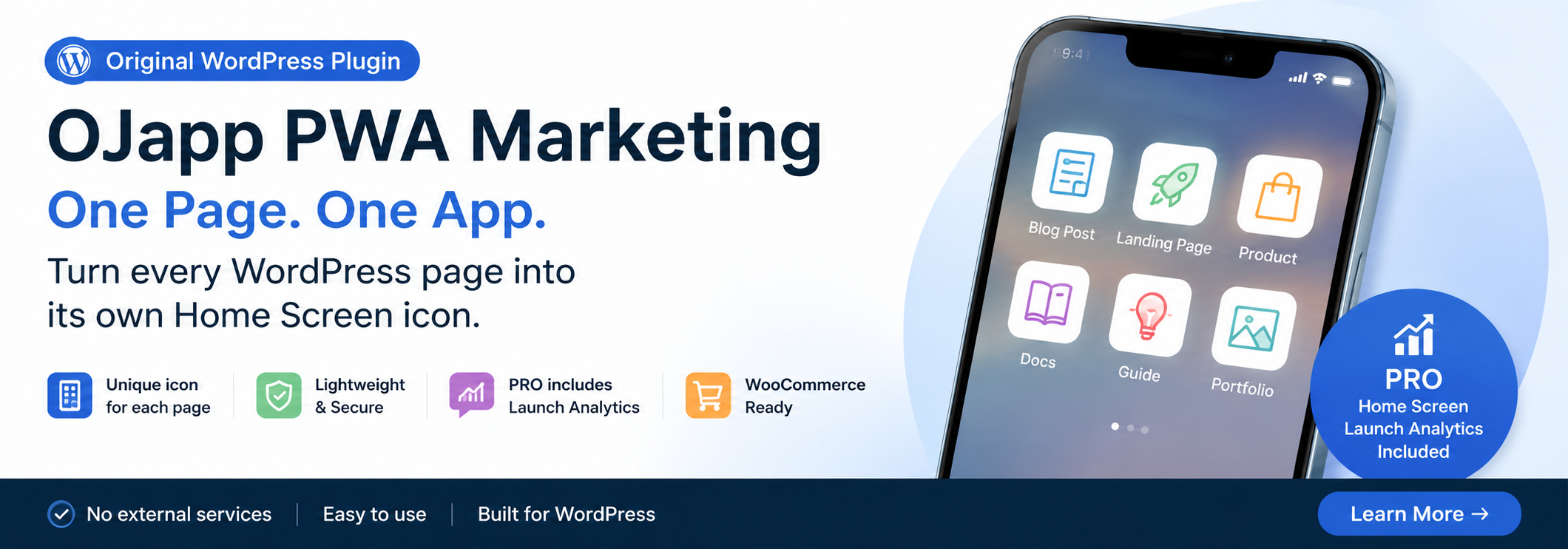
This site uses the original WordPress plugin OJapp PWA Marketing.
Each article can be added to your Home Screen with its own dedicated icon.
“Should we introduce PWA to our website?”
Whenever PWA (Progressive Web Apps) comes up, the conversation somehow tends to turn into a “large-scale development project.”
What impact will it have on the site structure? What about Service Workers? Offline support? SEO? Maintenance costs?
Of course, if you are building a full-fledged web application from scratch, there are many things to consider.
But if your goal is simply to make an existing website easier to access from the home screen, there is no need to overthink it that much.
After repeatedly testing Add to Home Screen behavior on both iPhone and Android in PWA LAB, I have recently started thinking about it this way:
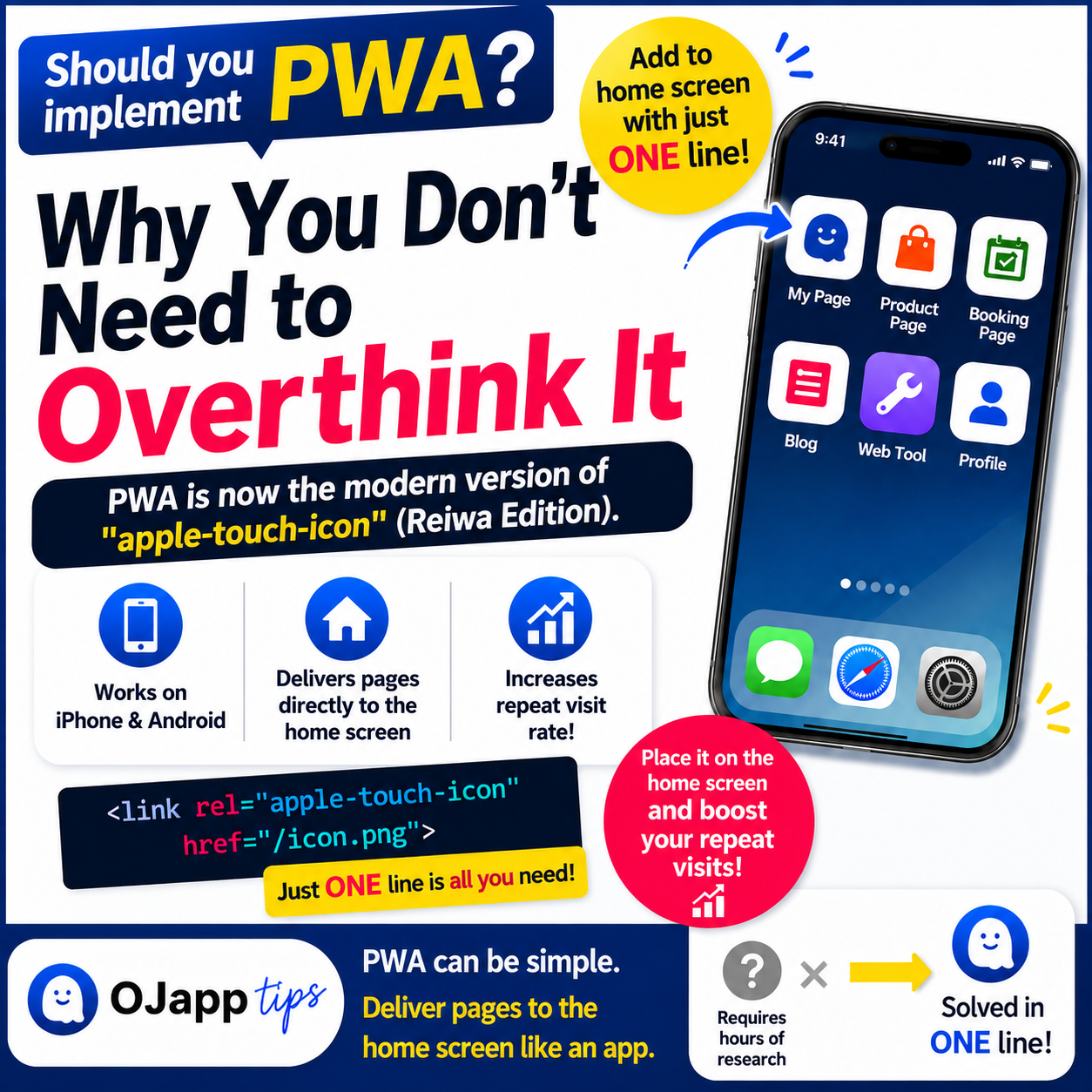
Modern PWA home screen support is basically the Reiwa-era version of
apple-touch-icon— with Android support and more functionality.
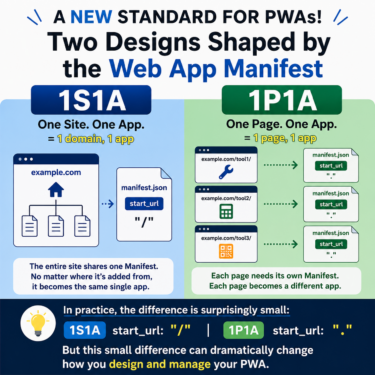
Especially with 1P1A (One Page. One App.), where one page is treated as one app, you do not even need to rebuild your existing website in a major way.
- 1 We used to add apple-touch-icon without overthinking it
- 2 PWA does not automatically mean large-scale web app development
- 3 If you only want home screen support, your website can stay almost exactly as it is
- 4 You no longer have to rely on apple-touch-icon
- 5 One line removes all the tedious setup
- 6 You can also assign a page-specific icon instead of the site icon
- 7 Old vs. modern: detoxing the head section
- 8 Why the script intentionally does not include a Service Worker
- 9 PWA is moving from “something to evaluate” to “something you simply add”
- 10 Summary
We used to add apple-touch-icon without overthinking it
Not too long ago, when building websites for smartphones, it was completely normal to write code like this:
<link rel="apple-touch-icon" href="/apple-touch-icon.png">
This specifies the icon used when a web page is added to the iPhone home screen.
Almost nobody would have held a multi-hour internal meeting just to ask:
“Should we introduce apple-touch-icon to our corporate website?”
The attitude was more like:
“If someone might add the site to their home screen, we may as well add one line.”
That was it.
But the moment the word “PWA” appears, the discussion somehow becomes much more complicated.
PWA does not automatically mean large-scale web app development
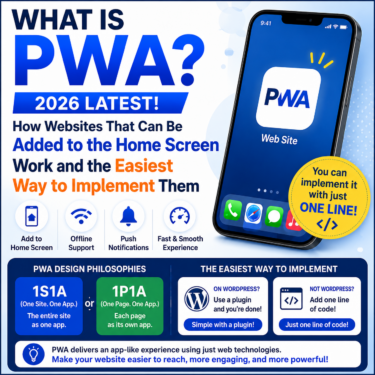
The term PWA actually includes many different pieces:
- Add to Home Screen / install experience
- Standalone display
- Offline support
- Push notifications
- Caching
- Service Worker
The problem is that people often treat all of these as one giant technology package.
That makes PWA adoption look much harder than it really is.
But you do not have to use everything.
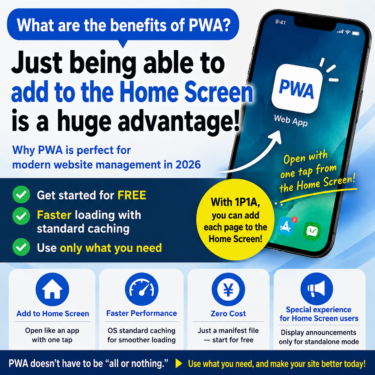
If your only goal is to let users add a page to the home screen and launch it in an app-like way, then you can simply use the parts you need for home screen support.
Using a Service Worker for offline support and making a page addable to the home screen are fundamentally separate concerns.
In PWA LAB, I have also tested manifest behavior, Service Workers, and cache strategies separately.
It is easier to understand PWA not as one monolithic technology, but as a collection of web capabilities that you can use selectively depending on what you need.
If you want to understand the overall structure of PWA in more detail, see How to Build a PWA: manifest.json, Service Worker, and Home Screen Support.
 PWAs Can Do This: How to Add User-Specific Pages to the Home Screen
If you only want home screen support, your website can stay almost exactly as it is
This is the most important point I want to make in this article.
Even if you add PWA functionality for home screen support, people who normally visit your site in a browser will still see exactly the same website as before — for better or worse.
- You do not need to rebuild all your HTML
- You do not need to redesign the layout specifically for PWA
- It does not inherently hurt page speed or SEO
If users arrive through search or social media, they simply browse the same web pages as before.
The only time the experience changes is when the user adds that page to their home screen.
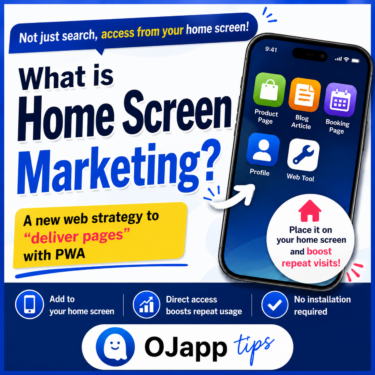
A dedicated icon appears on the home screen, and only when the user launches the page from that icon does it become an app-like entry point without the normal browser frame.
So why not simply prepare that “entry point for when the page is added” from the beginning?
That is why I think of modern PWA home screen support as the modern version of apple-touch-icon.
You no longer have to rely on apple-touch-icon
In the past, apple-touch-icon was almost essential for iPhone home screen support.
<link rel="apple-touch-icon" href="/icon.png">
However, current iOS Safari also uses the icons defined in the Web App Manifest for home screen icons.
{
  "name": "Example",
  "short_name": "Example",
  "start_url": ".",
  "display": "standalone",
  "icons": [
    {
      "src": "/icon.png",
      "sizes": "512x512",
      "type": "image/png",
      "purpose": "any maskable"
    }
  ]
}
I have verified this on real devices in PWA LAB, and iPhone can use the icon specified in the manifest.
What you really need to watch out for is an old apple-touch-icon still left in an existing page.
On iOS, if apple-touch-icon is present, it can take priority over the manifest icons.
That means you may specify a page-specific icon in the manifest, only to find that the home screen still shows the old site-wide icon from years ago.
If you want to optimize home screen icons on a page-by-page basis, apple-touch-icon may no longer be essential.
In some cases, it can actually get in the way.
One line removes all the tedious setup
In the past, turning a site into a PWA often involved a surprisingly annoying amount of preparation.
- Export multiple icon sizes such as 180×180, 192×192, and 512×512 from a design tool
-
Create
manifest.jsonmanually and fight with JSON syntax errors and path settings -
Add
apple-touch-iconseparately for iOS and load the manifest for Android
This preparation overhead was one of the biggest reasons PWA adoption felt like something that required a long discussion.
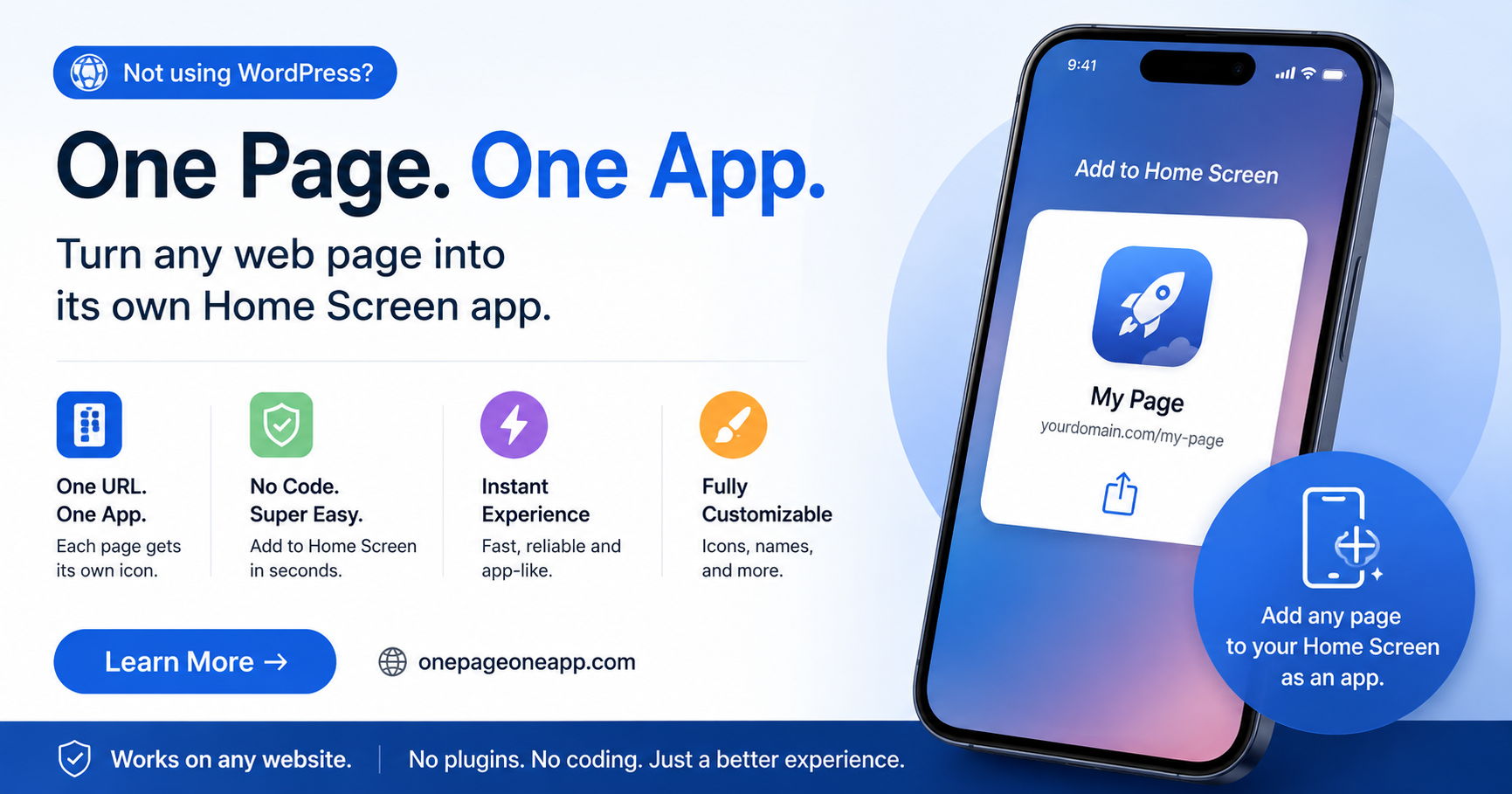
That is why OJapp proposes the 1P1A (One Page. One App.) approach.
1P1A does not treat the whole site as one app.
Instead, it treats one page as one app.
All you need to do is add one script tag to the target page:
<script src="https://ojapp.app/js/ojapp_1p1a.js"></script>
That is it.
The script automatically prepares an appropriate manifest so the page can be added to the home screen.
In the past, you might have written:
<link rel="apple-touch-icon" href="/apple-touch-icon.png">
Now you can simply place:
<script src="https://ojapp.app/js/ojapp_1p1a.js"></script>
in the same part of your page.
No image resizing.
No manual manifest.json creation.
No long design discussion.
It takes seconds.
And unlike apple-touch-icon, which was written only for iOS, this one line also covers Android.
You can also assign a page-specific icon instead of the site icon
If you want a dedicated home screen icon for a specific article or product instead of using the favicon, that is also simple.
Just add one meta tag to the page:
<meta name="ojapp:icon" content="https://example.com/icon.png">
This applies a high-resolution icon that works across Android and iOS.
Traditional apple-touch-icon thinking was basically based on one shared icon for the whole website.
With 1P1A, you can control the icon at the page level.
For example:
- Blog: use the article’s featured image instead of the site logo
- E-commerce: use the product image instead of the shop logo
- Web tool: use an icon that represents the specific tool instead of the service logo
In other words, you can ask:
“If this page is going to live on the home screen, what icon would make the most sense?”
And you can decide that separately for each page.
Old vs. modern: detoxing the head section
I have explained this at length, but the difference becomes obvious when you compare the actual code.
Before: the old head section
You needed all of this — plus image generation and a JSON file:
<link rel="icon" href="/favicon.ico">
<link rel="icon" type="image/png" sizes="180x180" href="/icon/icon-180.png">
<link rel="apple-touch-icon" sizes="180x180" href="/icon/icon-180.png">
<link rel="manifest" href="/manifest.json">
Today: the OJapp approach
<link rel="icon" href="/favicon.ico">
<script src="https://ojapp.app/js/ojapp_1p1a.js"></script>
If you want one app for the entire site instead, you simply use ojapp_1s1a.js.
One favicon line.
One script line.
Done.
If you omit the custom ojapp:icon, the script automatically detects the existing favicon and uses it as a fallback.
It really can be that simple.
Compared with the old workflow of exporting multiple icon sizes and checking manifest syntax, the difference is almost ridiculous.
For more about 1P1A itself, see The PWA Design Philosophy of 1P1A (One Page. One App.).
Why the script intentionally does not include a Service Worker
If you are a web engineer, you may be wondering:
“What about the Service Worker and cache control?”
The answer is simple:
The one-line script intentionally does not include a Service Worker.
The reason is that aggressive cache control is one of the easiest ways to cause problems on an existing site.
A Service Worker can make updated pages stop refreshing correctly or conflict with an existing production system.
So the responsibilities are deliberately separated:
- One-line OJapp script: handles the annoying front-end parts such as icon configuration, automatic manifest generation, and home screen support with minimal risk
- Your own implementation: if you need offline support or cache control, engineers can add a Service Worker designed specifically for that site’s requirements
Because of this separation, the one-line script does not interfere with the existing site’s behavior.
PWA is moving from “something to evaluate” to “something you simply add”
Once you look at it this way, spending hours in meetings asking whether you should “introduce PWA” starts to feel a little unnecessary.
Adding the 1P1A script to a blog article does not suddenly transform the blog into a complicated web application.
Normally, it remains exactly the same simple web page.
But when someone likes that article or product and chooses “Add to Home Screen,” it becomes an app-like entry point with its own icon.
The Web has always been based on:
1 URL = 1 piece of content
Search results work per page.
Bookmarks work per page.
Social sharing works per page.
There is no reason the home screen must always be treated as “one entire site = one app.”
Summary
Of course, if you want to send lots of Push notifications or build an advanced web application that works completely offline, then proper architecture and careful planning are necessary.
But if your goal is simply:
“Give users a quick way to return from their home screen.”
then PWA home screen support is no longer something that needs hours of technical debate.
Think of it like the modern version of adding apple-touch-icon.
Paste one line where you would once have added that old tag.
That light, practical mindset is probably enough to start today. 😊✨
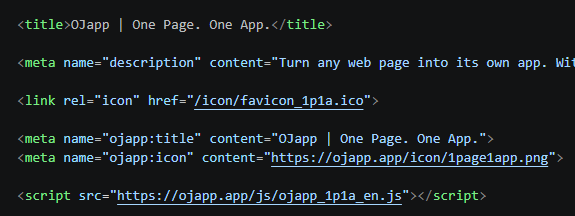
On the official website, you can try the actual Add to Home Screen experience.
You can also open DevTools with F12 and inspect the <head> implementation yourself, so feel free to test the behavior on desktop, Android, iOS, and iPhone. 😊
Official 1P1A website: https://ojapp.app/one-page-one-app/