
This site uses the original WordPress plugin OJapp PWA Marketing.
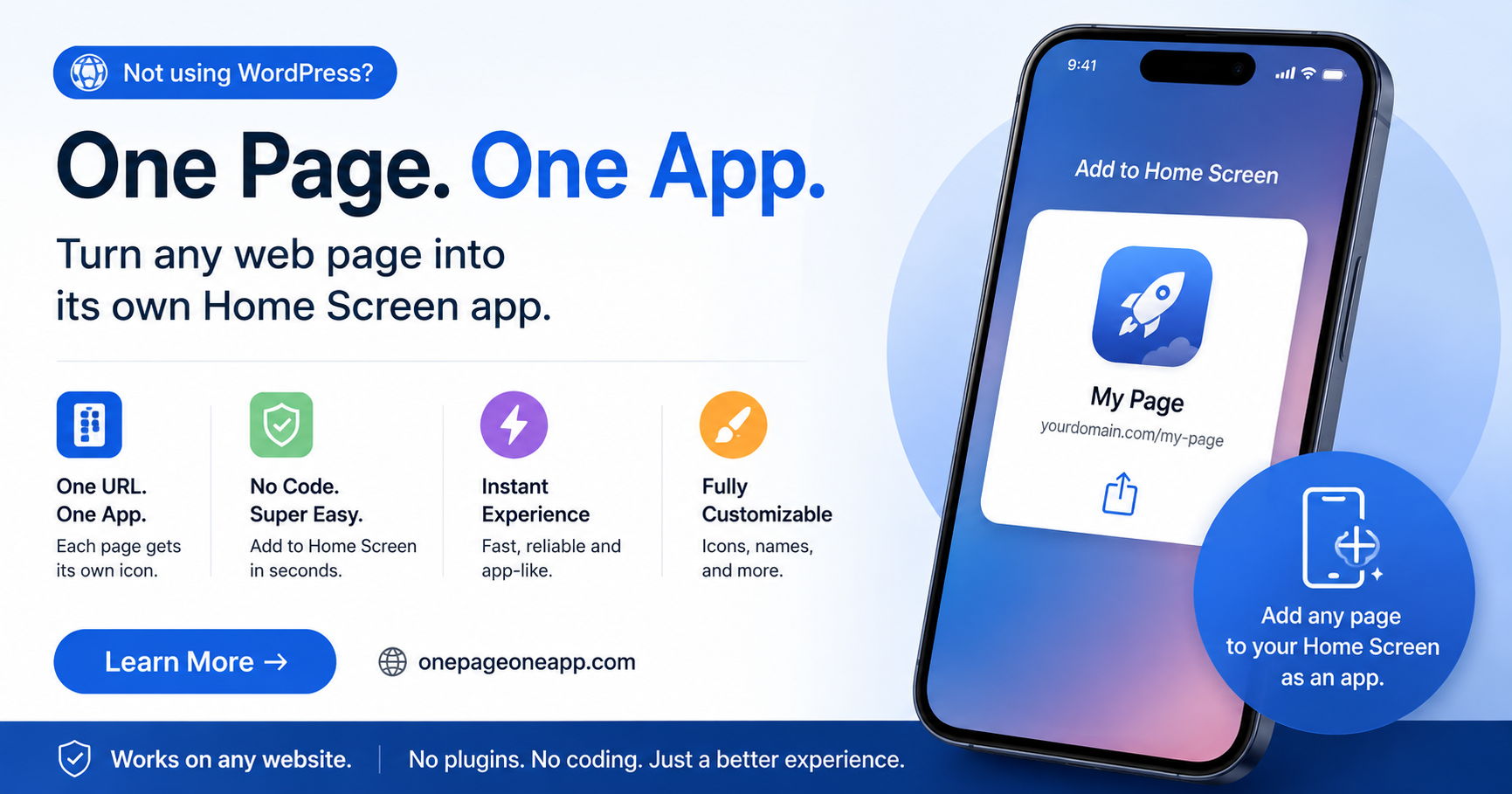
Each article can be added to your Home Screen with its own dedicated icon.
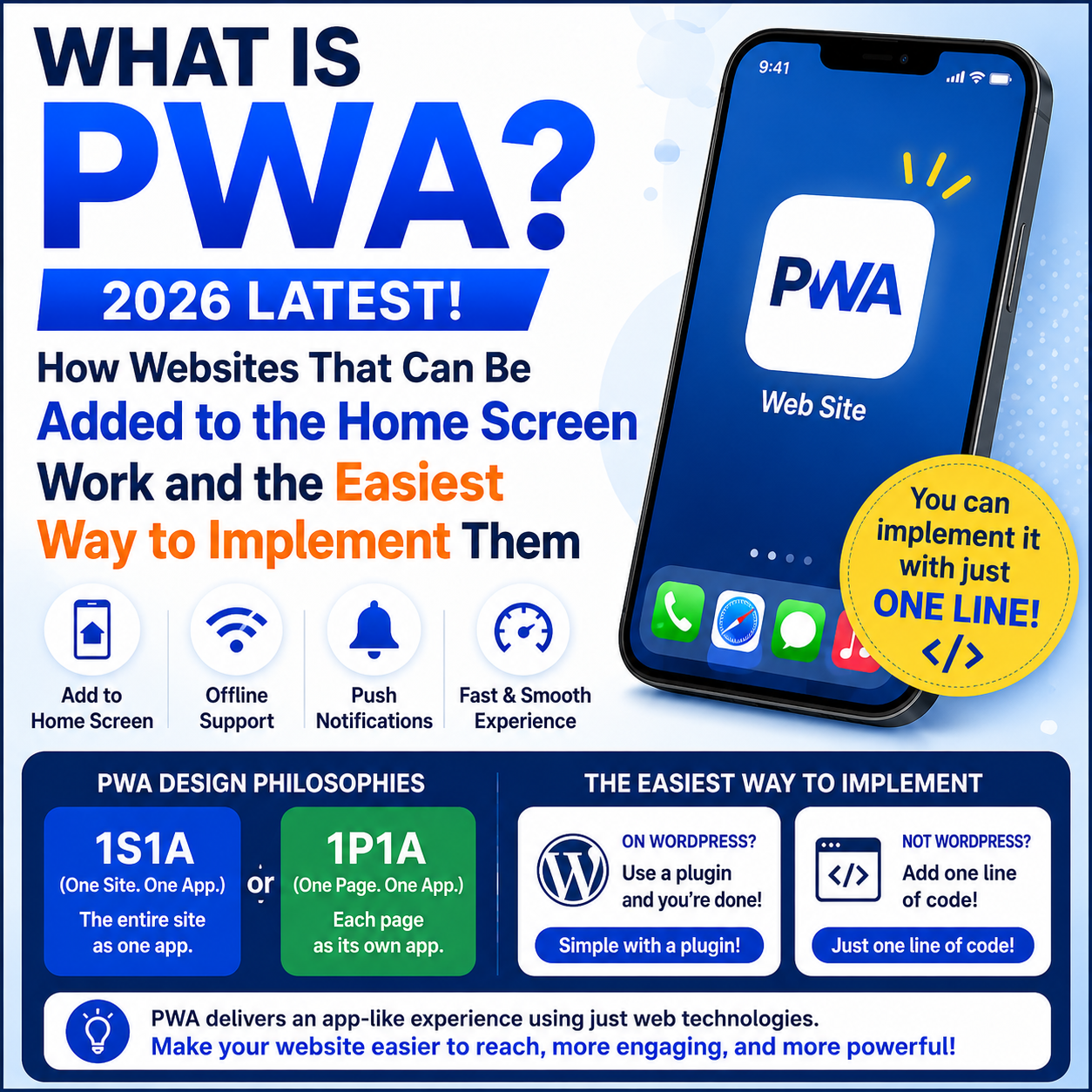
PWA (Progressive Web Apps) is a technology that allows you to add a website to a smartphone’s home screen and use it like an app.
Without publishing anything to the App Store or Google Play, you can provide an app-like experience using only your website.
Today, PWAs are increasingly used not only for corporate websites and e-commerce sites, but also for blogs, web tools, and many other types of websites.
However, many people still have questions such as:
“What exactly is a PWA?”
“What can a PWA do?”
“How is it different from a regular website?”
In this article, I’ll explain the basics of PWA as clearly as possible, along with the design concepts you should understand when actually building one.
- 1 What Can a PWA Do?
- 2 The Main Technologies Behind PWAs
- 3 There Are Two Design Philosophies for Web App Manifests
- 4 1S1A (One Site. One App.)
- 5 1P1A (One Page. One App.)
- 6 The Role of the Service Worker Also Changes with the Design
- 7 Neither Approach Is Inherently Better
- 8 The Simplest Way to Implement a PWA
- 9 PWA Is No Longer About “Whether to Implement It,” but “How to Design It”
- 10 Summary
- 11 Want to Learn More About PWA?
What Can a PWA Do?
By implementing PWA features, a website can provide experiences such as:
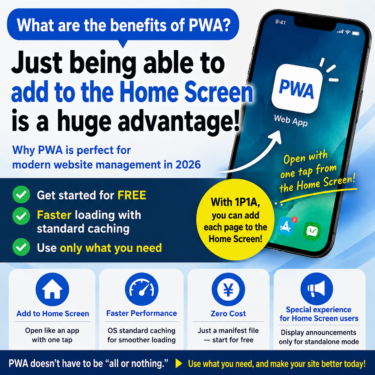
- Add to Home Screen
- Full-screen or standalone display without the browser UI
- Offline support
- Push notifications
- App-like launching experience
For most users, the first PWA feature they encounter is:
“Add to Home Screen.”
Once added, the website appears alongside other apps on the smartphone’s home screen and can be launched with a single tap.
The Main Technologies Behind PWAs
PWAs are built from several web technologies.
Three of the most important are:
Web App Manifest
The Web App Manifest is a configuration file for a PWA.
For example, it can define:
- App name
- Home screen icon
- Launch URL
- Display mode
The appearance and behavior of a website when it is added to the home screen are largely determined by the Manifest.
Service Worker
A Service Worker is JavaScript that runs in the background of a website.
It can handle features such as:
- Offline support
- Caching
- Push notifications
- Background processing
However:
A Service Worker is not required for every PWA use case.
If your goal is simply to make a website addable to the home screen, you can build that experience without using a Service Worker.
For that reason, this article focuses primarily on the technology that determines the structure and behavior of the PWA:
the Web App Manifest.
HTTPS
PWA features are designed to work on websites served over HTTPS.
Because they assume a secure connection, they cannot generally be used over plain HTTP.
 What I Learned by Using a Nonexistent URL: iPhone’s Hidden Home Screen Icon Behavior
There Are Two Design Philosophies for Web App Manifests
Most PWA tutorials focus only on how to write a Manifest and what each property does.
But when you actually design a Manifest, there is a more fundamental decision to make:
“What should be treated as one app?”
I organize this decision into two PWA design philosophies:
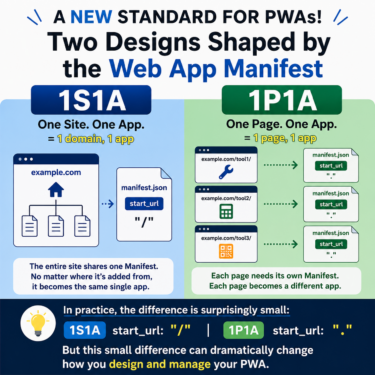
- 1S1A (One Site. One App.)
- 1P1A (One Page. One App.)
1S1A (One Site. One App.)
1S1A is a design approach that treats the entire website as a single app.
For example:
{
"start_url": "/",
"display": "standalone"
}
With this type of configuration, even if the user adds the PWA to their home screen from another page, launching the app starts from the top page.
Home Screen

🏠 Website
│
├ Article
├ Product
├ Contact
└ Blog
This works very well for corporate websites, portals, large e-commerce sites, and other services where the entire website should act as the main entry point.
Many PWAs available today use this type of design.
1P1A (One Page. One App.)
There is another way to think about PWA design.
That is:
One Page. One App.
As the name suggests, this design treats each individual page as its own app.
For example:
{
"start_url": ".",
"display": "standalone"
}
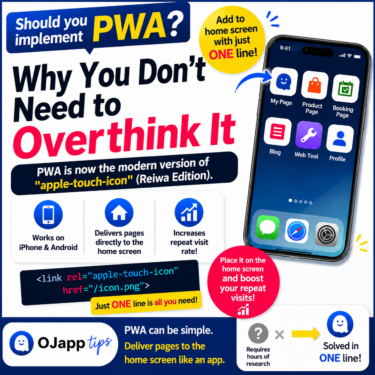
With this approach, the page currently being viewed can itself become the page launched from the home screen.
Home Screen

📄 Article A

🛒 Product Page

📅 Booking Page

🧮 Web Tool
In other words, blog posts, product detail pages, booking pages, profile pages, web tools, and other individual pages can appear directly on the home screen.
I see this approach as bringing one of the Web’s original ideas—
“1 URL = 1 piece of content”
—directly to the home screen.
Search engines work page by page.
Social sharing works page by page.
Bookmarks work page by page.
The Web has always been built around individual pages.
So why shouldn’t the home screen work the same way?
That idea led to 1P1A.
It is still rarely discussed in conventional PWA tutorials, but I believe it can become an increasingly useful design philosophy for blogs, e-commerce sites, web tools, digital business cards, and other services where individual pages have value of their own.
The Role of the Service Worker Also Changes with the Design
Service Workers are responsible for features such as caching and offline support.
With 1S1A, the entire website is managed as one app, so caching strategies are often designed around the site as a whole.
With 1P1A, however, each page is treated as an independent app.
That means it is also possible to think about caching only the pages that actually need it.
In other words, the role of the Service Worker can change depending on what kind of PWA you are building.
Neither Approach Is Inherently Better
One important point is that 1S1A and 1P1A are not competing technologies.
Both are PWAs.
The difference is simply:
What do you consider to be one app?
For a corporate website or portal, 1S1A may make more sense.
For product pages, blog posts, web tools, and other websites where individual pages have value of their own, 1P1A may be a better fit.
The best design depends on the purpose of the website.
The Simplest Way to Implement a PWA
At this point, you may be wondering:
“So how do I actually implement one?”
A few years ago, implementing a PWA required a certain amount of technical knowledge, including:
- Creating
manifest.json - Preparing icon images
- Configuring
apple-touch-icon - Writing a Service Worker
- Enabling HTTPS
Today, however, there are much simpler ways to get started.
For WordPress, a Plugin Is the Simplest Option
If you use WordPress, installing a PWA plugin is one of the easiest approaches.
For example, OJapp PWA Marketing automatically generates a page-specific Web App Manifest for:
- Posts
- Pages
- WooCommerce product pages
It also automatically handles things such as:
- Home screen icons
- Home screen names
apple-touch-icon
This means you can implement home screen support without needing specialized PWA knowledge.
Simply write and publish your content, and the page can be made available for adding to the home screen.
This website also uses the OJapp PWA Marketing WordPress plugin.
Try adding this page to your home screen to see how it actually behaves.
The official OJapp PWA Marketing page is available here.
Outside WordPress, You Can Implement It with One Line
Today, websites outside WordPress can also implement PWA home screen support by adding a single line of JavaScript.
For example:
<script src="https://ojapp.app/js/ojapp_1p1a_en.js"></script>
With just this line, a Web App Manifest is dynamically generated, allowing the website to be added to the home screen.
If necessary, you can also specify a page-specific title and icon:
<meta name="ojapp:title" content="Page Title">
<meta name="ojapp:icon" content="https://example.com/icon.png">
This means you no longer need to manually manage a separate manifest.json for every page.
The official One Page. One App. page is available here.
In the past, PWA often sounded like a “difficult technology.”
Today, WordPress sites can use plugins, while other websites can implement home screen support with a single script.
That is why I believe the important question is no longer:
“Should we implement a PWA?”
It is:
“How should we design the PWA?”
PWA Is No Longer About “Whether to Implement It,” but “How to Design It”
In the past, discussions often focused on:
“Should we implement a PWA?”
Today, simply making a website addable to the home screen is no longer particularly difficult.
What matters now is:
How should the Manifest be designed?
Should the entire website become one app?
Or should each page become an independent app?
That design decision can significantly change the user experience.
Summary
A PWA is a technology that allows a website to be added to the home screen and provide an app-like experience.
At the center of that experience is the:
Web App Manifest.
When designing the Manifest, there are two ways to think about what constitutes an app:
- 1S1A (One Site. One App.)
- 1P1A (One Page. One App.)
Neither approach is universally correct.
The important thing is to choose the design that best fits the purpose of the website.
PWA is beginning to evolve beyond simply being a technology for “adding websites to the home screen.”
It is becoming a way to think about the architecture and user experience of the Web itself.
Want to Learn More About PWA?
PWA is not only about adding a website to the home screen. There are many different approaches to its design and implementation.
If you’re interested, these articles may also be useful:
- Fundamentals & Design Philosophy
- Getting Started with WordPress
- What Changes When You Add a PWA Plugin to WordPress? Benefits and Use Cases Explained
- How to Use OJapp PWA Marketing
- Practical Tests & Experiments