Why “Add to Home Screen” Doesn’t Work — Complete Guide to Causes & Fixes
Last updated: 2026/01/31
Many users experience issues where “Add to Home Screen” doesn’t appear, doesn’t respond, or the icon looks incorrect on iPhone or Android.
This guide explains every common cause and provides quick, practical solutions you can try immediately.
Common Symptoms
- “Add to Home Screen” is missing
- The button appears but doesn’t work
- The icon becomes the wrong image
- Adding the same page overwrites the previous icon
All of these are caused by a few predictable system behaviors.
Cause 1: You’re using an in-app browser
On iPhone, browsers inside apps like Instagram, X, TikTok, LINE, Facebook do not support “Add to Home Screen.”
Fix
- Tap “Open in Safari” (usually bottom-right)
- Or copy the URL and open it manually in Safari
→ It always works once opened in Safari.
👉 How to Build a PWA: A Beginner-Friendly Guide to manifest.json, Service Workers, and Home Screen Setup
Cause 2: Safari’s toolbar is hidden (iPhone)
When you scroll down, Safari hides the toolbar. Without the toolbar, the Share button disappears— which means the “Add to Home Screen” option won’t show.
Fix
- Tap near the top of the screen to reveal the toolbar
- Swipe slightly downward to bring it back
If you can see the Share button (□↑), you’re good.
Cause 3: You’re not on the correct page
Some sites only allow proper Home Screen installation when you add the actual page you want— not a redirect or subpage.
This issue commonly appears on WordPress, Medium, Shopify, etc.
Fix
- Open the exact page you want before adding
- Avoid URLs with /? parameters
Cause 4: The icon file (apple-touch-icon) is missing
iPhone relies on a file named: apple-touch-icon.png
If the site doesn’t provide it, you may see:
- A black background
- A blank icon
- The platform’s default logo
With OJapp?
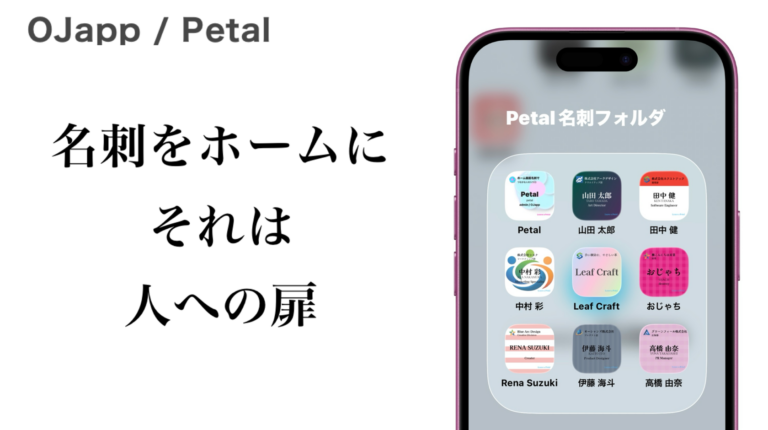
OJapp bypasses this entirely— you always get your own custom icon.
Cause 5: PWA (Web App) requirements are not met
Some websites cannot be added because they fail PWA-related conditions such as:
- No HTTPS
- Broken or invalid
manifest.json - Service Worker errors
Users usually cannot fix these— they require the site developer to adjust the settings.
Cause 6: Browser cache issues
If the icon doesn’t change even after updating the page, old data may be stuck in the browser cache.
Fix
- Safari → Settings → Clear History & Website Data
- Chrome → Clear cache
Cause 7: Android Chrome has two types of menus
Depending on the Chrome version, “Add to Home screen” can appear in:
- The main menu
- The “Install app” section
Check both locations to be sure.
If Nothing Works: Final Checklist
Try these steps—together they solve the issue almost every time:
- Open the page in Safari or Chrome (not in-app browsers)
- Clear browser cache
- Type the URL manually and open the top page
- Restart the device
If it still doesn’t work, the problem is highly likely on the site’s configuration.
OJapp Makes “Add to Home Screen” More Reliable
OJapp is designed specifically for Home Screen installation, making it much more stable than a regular website.
- Your icon always appears correctly
- Works on both iPhone and Android
- Clear prompts for users stuck in in-app browsers
Perfect for anyone who wants others to add their link properly.
👉 Add websites to your Home Screen with OJapp
👉 https://tips.ojapp.app/en/scroll-seo-2/