"
You want to add a website to your iPhone home screen, but “Add to Home Screen” is nowhere to be found.
Maybe you can see the Share button, but the option is missing. Or perhaps you successfully added the site, but the icon looks wrong. In some cases, tapping the new icon opens the website's home page instead of the page you originally added.
These problems do not all have the same cause.
In particular, if “Add to Home Screen” is missing, there is one simple thing worth checking before investigating PWA settings or assuming something is broken: what exactly are you sharing?
This guide goes through the common reasons “Add to Home Screen” may not appear on an iPhone, starting with things users can check immediately and then moving into website and PWA configuration issues.
First: Where is “Add to Home Screen” on iPhone?
To add a website to your iPhone home screen, open the page you want in Safari and use the Share menu for that web page.
- Open the web page you want to add in Safari
- Tap Safari's Share button
- Scroll through the Share menu
- Tap “Add to Home Screen”
- If available, choose the option to open it as a web app
- Tap “Add”
The exact position and appearance of Safari's controls can vary depending on your Safari layout, but the basic flow is the same: open the web page → Share → Add to Home Screen.
“Add to Home Screen” missing? Check these first
Now to the actual problem.
If you opened a Share menu but cannot find “Add to Home Screen,” check the following causes before changing anything on the website.
Cause 1: You opened an image share sheet
This is surprisingly easy to miss.
If you long-press an image on a web page, open the image itself, and then tap Share, your iPhone displays a share sheet for the image.
At that point, you are sharing an image, not the web page.
So looking for the web page's “Add to Home Screen” action in that share sheet will not help.
If you tapped Share but cannot find “Add to Home Screen,” close the share sheet first.
Return to the web page itself in Safari, then open Safari's Share menu again from that page.
You can be in the correct-looking Share interface but still be sharing the wrong thing. What you are sharing matters.

Cause 2: “Add to Home Screen” is hidden from Safari's actions
You may be looking at the correct Safari Share menu and still not see “Add to Home Screen.”
In that case, scroll to the bottom of the Share menu and look for “Edit Actions.”
If “Add to Home Screen” has been hidden from your available actions, you can add it back from there.
So if the option is missing in Safari, do not immediately assume the website or its PWA configuration is broken.
Cause 3: You opened the website inside Instagram, X, LINE, or another app
When you tap a link inside Instagram, X, LINE, TikTok, or another app, the website may open inside that app instead of switching to Safari.
This is commonly called an in-app browser.
It may look like a normal web page, but it is not the same Safari interface. As a result, Safari's normal sharing actions may not be available, and “Add to Home Screen” may be difficult or impossible to find there.
Fix: Open the page in Safari
Look for an option such as “Open in Safari” or “Open in Browser” in the app's menu.
If you cannot find one, copy the page URL and paste it directly into Safari.
Once the web page itself is open in Safari, check the Share menu again.
Still missing in Safari? Check these four things
At this point, the basic troubleshooting is simple:
- Make sure you are viewing the web page, not an image
- Make sure the page is actually open in Safari
- Open Safari's Share menu from the web page
- Check whether “Add to Home Screen” is hidden under “Edit Actions”
If “Add to Home Screen” is missing, these are the first things I would check.
There is no need to start with the Web App Manifest or Service Worker. If the problem is on the user side, it may already be solved at this point.
“Add to Home Screen” appears, but the site still won't add
If the option itself is available but the process does not work as expected afterward, the problem is slightly different.
First, check whether the same website or web app is already on another home screen or inside a folder.
If an older icon already exists, remove it, reload the page in Safari, and try adding it again.
If the behavior appears temporary, reloading the page, reopening Safari, or restarting the iPhone can also help isolate the problem.
The site was added, but the icon looks wrong
Sometimes the home screen entry is created successfully, but the icon is not what the website owner intended.
For example:
- An old icon is still displayed
- An unexpected image appears
- The expected PWA icon is not used
- The website changed its icon, but the home screen still shows the old one
This is different from an “Add to Home Screen is missing” problem. It can involve the website's icon configuration and icon data already stored by the iPhone.
For developers: Check apple-touch-icon
On iPhone, the HTML apple-touch-icon setting can have a strong influence on the icon used for a home screen web app.
<link rel=""apple-touch-icon"" href=""/icon.png"">I have repeatedly tested home screen behavior on iPhone while developing OJapp and running PWA LAB experiments, and icon handling is one area where I would not treat iPhone exactly like Android.
Do not check only the Web App Manifest's icons. Check the page's apple-touch-icon configuration as well.
Also, changing an icon on the website does not necessarily mean an existing home screen icon will immediately change.
If you are testing a new icon, removing the existing home screen entry and adding it again can make the result easier to verify.
The site was added, but it opens the wrong page
Another common problem is this: you add an article, product page, profile, or web tool, but tapping the home screen icon opens the website's home page instead.
At that point, the way you added the page may not be the problem. The website's PWA configuration may be controlling the launch URL.
Check the Manifest start_url
A Web App Manifest can define the URL that should be used when the installed web app launches.
For example:
{
  ""start_url"": ""/""
}
If the PWA is intentionally designed as one app for the entire website, the root URL can be its launch entry point.
There is nothing technically wrong with start_url:""/"".
If the goal is to treat the entire website as one app, that design makes sense.
But this is something I have become particularly interested in through real-device PWA testing.
A user may be looking at a specific article, product, profile, or web tool when they deliberately choose “Add to Home Screen.” If tapping that icon later sends them back to the site's home page, is that really the best experience for that website?
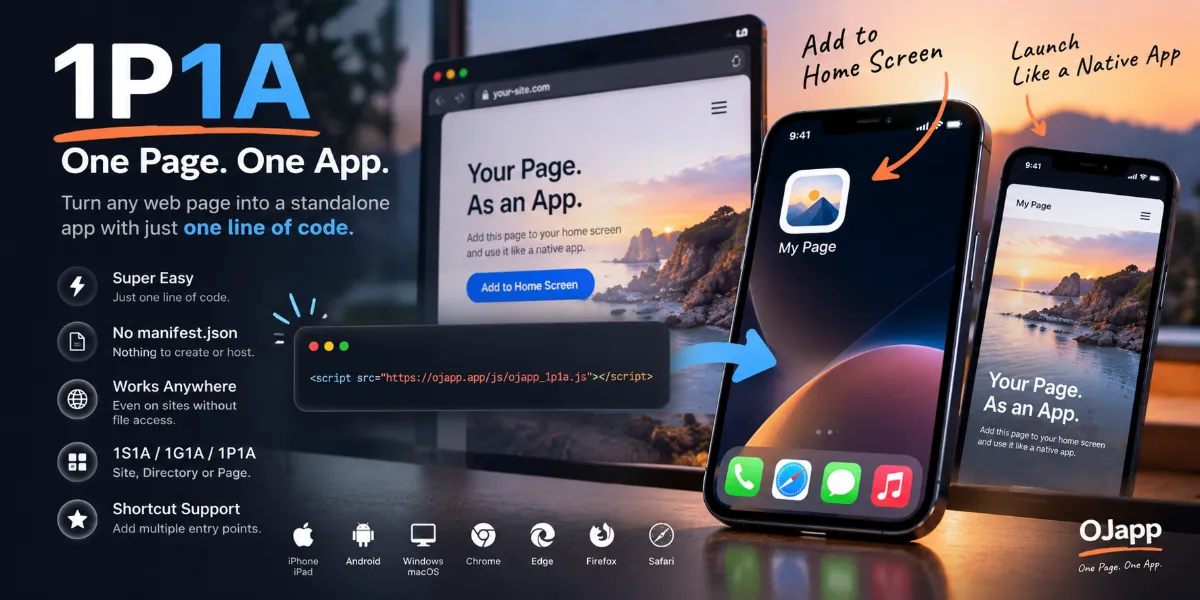
That question eventually led me to experiment with 1P1A, or One Page. One App., where an individual page can be treated as its own home screen entry point.
So if the home screen icon opens a different page, do not assume the user added the wrong page. The site's start_url may be responsible.
I also found a PWA-specific case where “Add to Home Screen” disappeared
During PWA LAB testing, I also encountered a more unusual case where the state of an existing PWA appeared to affect the home screen installation flow.
In particular, while testing a 1S1A setup that treats an entire site as one app, I investigated a case where “Add to Home Screen” was not appearing as expected and the PWA state itself became relevant.
This is different from basic problems such as opening an image share sheet or using an in-app browser.
If you are definitely viewing the correct web page in Safari and still cannot get the expected Add to Home Screen option, I documented that real-device test separately:
Did a PWA Make “Add to Home Screen” Disappear? An Unexpected 1S1A Case
For developers: What should you check when users say they can't add your site?
If a user tells you that your website cannot be added to the iPhone home screen, I would not start by rewriting the PWA configuration.
First determine what is actually failing:
- Is the page open in Safari?
- Are they sharing the web page itself?
- Is “Add to Home Screen” hidden from the Share actions?
- Is the installation itself failing, or is only the icon wrong?
- Was the site added successfully but does the icon launch the wrong URL?
Those are different problems and should be debugged separately.
If the problem happens after the site has been added, then settings such as apple-touch-icon, the Web App Manifest, and start_url become more relevant.
You may also find older PWA guides claiming that a missing Service Worker automatically means the site cannot be installed. That is no longer a reliable general rule. A Service Worker itself is not an absolute requirement for PWA installability.
Service Workers are still important for features such as offline behavior, caching, and push notifications, but “Add to Home Screen is missing” should not automatically be diagnosed as a Service Worker problem.
What to do when “Add to Home Screen” is missing on iPhone
If you cannot find “Add to Home Screen” on your iPhone, do not start with complicated PWA debugging.
First, make sure you are sharing the web page itself from Safari.
An image share sheet is not the same thing as Safari's share sheet for the web page.
If you are definitely sharing the page from Safari, check “Edit Actions” to see whether Add to Home Screen is hidden.
If you opened the link from Instagram, X, LINE, or another app, open the URL directly in Safari and try again.
Once Add to Home Screen itself works, any remaining problems—such as the wrong icon or the wrong page opening—can then be investigated as website or PWA configuration issues.
“I can't find Add to Home Screen” and “the site behaves incorrectly after I add it” are two different problems.
Separating them makes troubleshooting much easier.
Using Android instead?
Android uses a different installation flow. Depending on the website and Chrome's handling of it, you may see “Install” instead of “Add to Home Screen,” and an installed PWA is not always the same as a normal website shortcut.
Android Add to Home Screen or Install Missing? Causes and Fixes for Chrome
Related articles
- How to Add a Website to the iPhone Home Screen
- Did a PWA Make “Add to Home Screen” Disappear? An Unexpected 1S1A Case
- PWA vs Web Clip on iPhone: What's the Difference?
"