Sometimes you think, “I open this page every day—why do I have to search for it each time?”
This guide explains, in the simplest way possible, how to use the standard “Add to Home Screen” feature on both iPhone (Safari) and Android (Chrome).
We also cover why icons often become the platform’s logo and what to do if you want full control over the icon.
How to Add a Website to the Home Screen on iPhone (Safari)
- Open the page in Safari
- Tap the Share button (□↑) at the bottom
- Select Add to Home Screen
- Confirm the name and tap Add
Your Home Screen icon is now created.
Why You Can’t Change the Icon Freely on iPhone
Safari looks for the website’s apple-touch-icon file when generating the Home Screen icon.
That means platforms like:
- Medium → Medium’s “M” logo
- Shopify → Shopify bag icon
- Etsy → Etsy “E” logo
will always display their own branding— not yours—when added to the Home Screen.
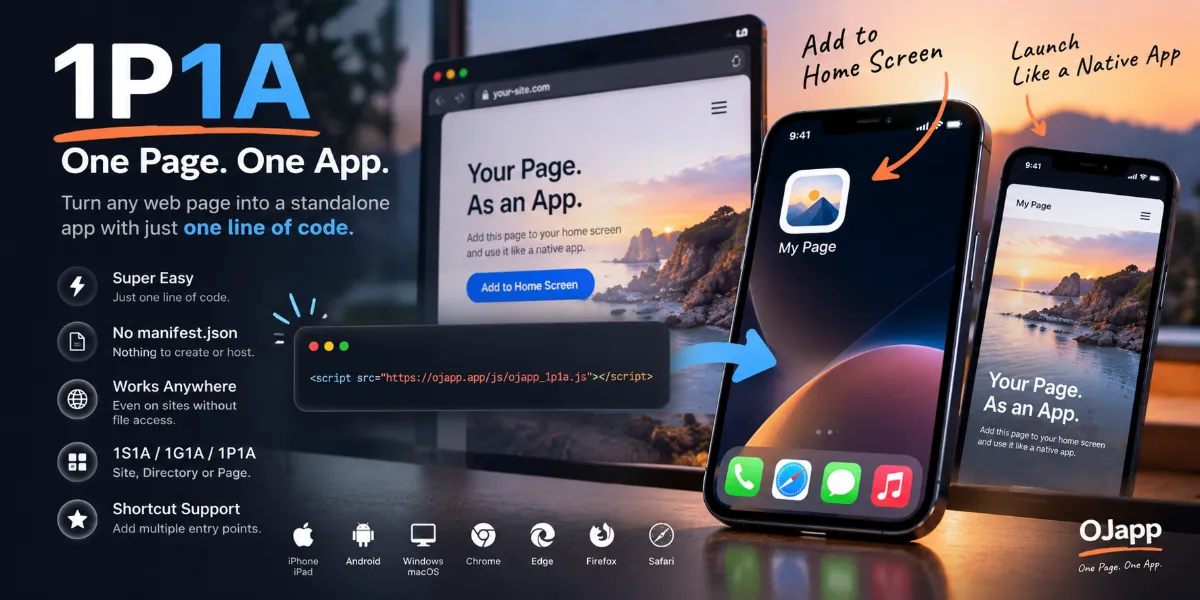
How to Add a Website to the Home Screen on Android (Chrome)
- Open the page in Chrome
- Tap the menu icon (︙) in the top-right
- Select Add to Home screen
- Confirm the name and add it
Android also uses the website’s configured icon automatically.
When “Add to Home Screen” Doesn’t Appear
- The website does not support Home Screen installation
- Safari is showing Reader View
- The Chrome menu hides the option for certain page types
The most common issue: the website does not provide icon settings.
Want to Use Your Own Icon and Name?
The standard iPhone/Android feature does not allow custom icons, app names, or URLs.
That’s where OJapp comes in.
- Use any image as your icon
- Choose any display name
- Works for Medium, Shopify, Etsy, portfolios—anything
- No Shortcuts required
👉 Use OJapp to add websites with custom icons
Once you learn this, adding websites to your Home Screen becomes much more useful and flexible.