Shortcut Method vs OJapp: A Complete Comparison for Custom iPhone Icons
Last updated: 2026/01/28
When it comes to customizing iPhone Home Screen icons, the most well-known solution is using the **Shortcuts app**.
However, many users quickly notice that the Shortcut method can be confusing, slow, and difficult to recommend to others.
In this guide, we compare the Shortcut method and the OJapp approach across five key factors— ease of setup, shareability, speed, consistency, and safety— to help you understand which method is better for your needs.
What Is the Shortcut Method?
The Shortcut method uses the built-in iOS “Shortcuts” app to create a custom icon that launches a URL or app via an automation-like shortcut.
While highly customizable, it comes with several drawbacks—especially for beginners.
Advantages of the Shortcut Method
- Allows complete freedom when choosing icons
- Uses built-in iOS functionality—no installation required
- Supports URL schemes for opening apps directly
It works especially well for people who want to **retheme their entire Home Screen with matching icons**.
👉 How to Build a PWA: A Beginner-Friendly Guide to manifest.json, Service Workers, and Home Screen Setup
Disadvantages of the Shortcut Method
- Setup is complicated and hard for beginners
- Shortcuts cannot be shared as ready-to-use icons(users must recreate the setup)
- A Shortcuts screen flashes briefly when launching the icon
- Managing multiple URLs becomes tedious
It’s fine for personal use, but not suitable for asking customers to “add your shop to their Home Screen.”
What Is OJapp?
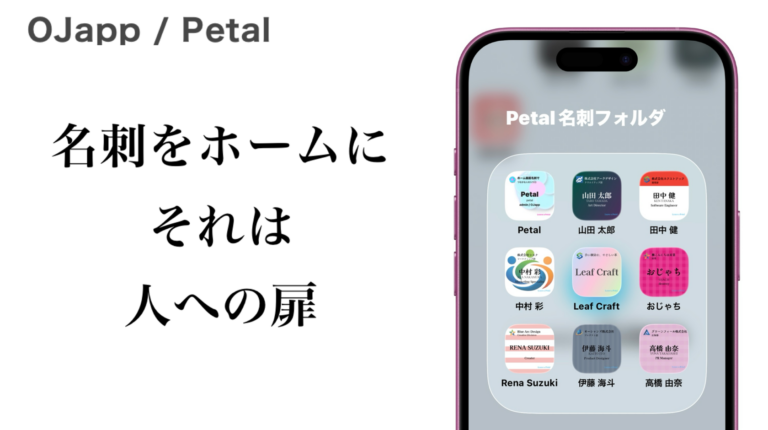
OJapp is a web tool that lets you freely set the icon, title, and URL when adding a website to your Home Screen.
It works on both iPhone and Android. No Shortcuts, no app installation—just a simple, direct setup.
Shortcut vs OJapp: Comparison Across Five Factors
1. Ease of Setup
- Shortcut: Long, complex steps. Difficult for beginners.
- OJapp: Select an image, enter a URL—anyone can use it instantly.
2. Shareability
- Shortcut: Users must recreate the setup themselves.
- OJapp: Share one URL and the exact same icon settings can be reproduced.
3. Launch Speed
- Shortcut: A Shortcut confirmation screen appears momentarily.
- OJapp: Opens the webpage directly with no delay.
4. Consistency & Management
- Shortcut: Must be set up on every device; needs recreation after switching phones.
- OJapp: As long as you have the URL, the same setup can be restored anytime.
5. Safety & Reliability
- Shortcut: Incorrect URL or settings can break the shortcut.
- OJapp: Simply opens the URL directly—stable and safe.
Conclusion: Use Cases Make the Difference
● Want a themed Home Screen or full icon overhaul → Choose the Shortcut method
● Want users to add your website or shop to their Home Screen → Choose OJapp
By choosing the right method, you can optimize your Home Screen without unnecessary complexity.
Both Methods Are Useful to Know
For anyone interested in Home Screen customization, understanding both the Shortcut method and OJapp gives you the most flexibility.
OJapp solves one specific problem: making it simple, fast, and shareable to place a website on the Home Screen using your own custom icon.
👉 Try OJapp and set your own Home Screen icons
👉 https://tips.ojapp.app/en/scroll-seo-2/