How to Create Home Screen Icons for iPhone & Android (Tool Comparison Guide)
Last updated: 2026/02/01
If you want a fully customized and unified Home Screen, the first method you’ll see online is usually “Create icons with Canva.”
However, Canva is not the best choice for every situation. The ideal method depends on what kind of icon you want to create.
This guide explains how to create Home Screen icons step-by-step and compares Canva, photo apps, and specialized tools so you can choose the easiest method for your goal.
Recommended Image Size for Home Screen Icons
To ensure clean, sharp icons on both iPhone and Android, use:
- 1024 × 1024 px (recommended)
- Minimum: 512 × 512 px
- PNG format (transparent background supported)
iPhone automatically rounds the corners, so leave your image as a square—no need to add rounding yourself.
Three Main Ways to Create Home Screen Icons
Here are the three most common approaches, depending on your needs.
① Canva (Best for design-heavy icons)
Canva offers a huge variety of templates, making it great for icon sets that share the same vibe.
Pros
- Large library of templates
- Easy to export transparent PNGs
- Perfect for themed or matching icon sets
Cons
- Detailed design work can be difficult
- Free version may not allow transparent exports
- You must manually ensure consistent export sizes
② Photo Apps / Editing Apps (Best for quick icons)
If you want simple icons—like recoloring a photo— the built-in iPhone Photos app or basic editing apps are enough.
Pros
- Very simple to use
- No need to install extra design apps
- Perfect for quick and minimal icon styles
Cons
- Hard to maintain consistent design quality
- Advanced edits (like transparency) require additional apps
③ OJapp (Designed specifically for Home Screen icons)
OJapp is built for one purpose: creating icons that look perfect when added to the Home Screen. Upload your icon and it is automatically optimized.
Pros
- Automatically optimizes to 1024px
- Supports transparent PNGs
- Lets you add the icon directly to your Home Screen
- Works beautifully with Canva exports
Cons
- Does not include design editing tools (use Canva/photos for that)
You can create the image anywhere, but OJapp handles all the adjustments needed for Home Screen display.
👉 Home Screen Customization in 2026: How iOS Evolved and What Users Want Now
Best Method Depending on Your Goal
| Goal | Recommended Method |
|---|---|
| Make cute or aesthetic icons | Canva |
| Use a photo as-is | Photo app / editing app |
| Turn a brand logo into an icon | OJapp |
| Create a full set of matching icons | Canva → OJapp |
How to Create Icons in Canva (Beginner Friendly)
- Open Canva → “Custom Size” → enter 1024 × 1024
- Choose a background color
- Add text, shapes, or images
- Export as PNG (transparent if needed)
Once exported, your icon image is ready to use.
How to Add Your Finished Icon to the Home Screen (iPhone/Android)
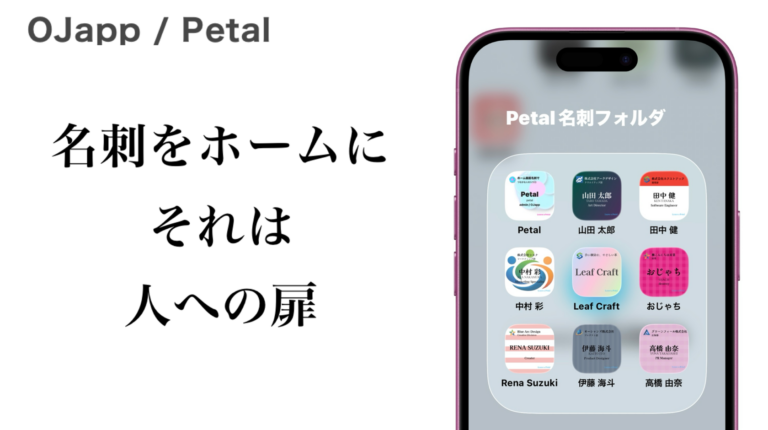
With OJapp, your created icon becomes a real Home Screen shortcut with your custom image.
- Open OJapp
- Upload your icon image
- Enter the app name
- Enter the URL you want to open
- Tap “Add to Home Screen”
Your Canva-designed icon appears on your Home Screen just like a real app icon.
Conclusion: Choose the Method That Matches Your Goal
The best tool for creating Home Screen icons depends entirely on what you want to achieve.
- Design-focused → Canva
- Simple and quick → Photo apps
- Home Screen–optimized → OJapp
Ultimately, how you use the icon matters more than where you design it.
👉 Add your custom icon to the Home Screen with OJapp
👉 https://tips.ojapp.app/en/scroll-seo-2/