
This site uses the original WordPress plugin OJapp PWA Marketing.
Each article can be added to your Home Screen with its own dedicated icon.
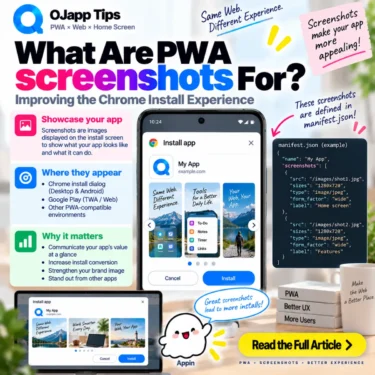
The Web App Manifest includes a member called screenshots.
As the name suggests, it lets you provide images that preview your PWA.
When I first looked at this feature, though, I had a simple question.
If the user is already looking at the website, why do we need screenshots in the installation experience?
They are not required to make a PWA installable.
A PWA can be installed and launched from the home screen without them.
So what are they actually for?
Using the current Manifest documentation and my experience implementing screenshots in the OJapp WordPress plugin, let’s look at what this optional field adds.
- 1 screenshots are preview images for your web app
- 2 screenshots are optional
- 3 Android Chrome can use screenshots to enrich the install prompt
- 4 I added screenshots to the OJapp WordPress plugin
- 5 Do not put too much small text into the image
- 6 A screenshot object can contain more than src
- 7 wide and narrow can describe different layouts
- 8 label is worth including
- 9 platform can describe a platform-specific screenshot
- 10 Do not assume iPhone uses the same installation UI
- 11 Dynamic Manifests can use different screenshots for different pages
- 12 I also separated Japanese and English screenshots
- 13 screenshots do not change runtime performance
- 14 The Manifest can shape the experience before installation too
- 15 Not required, but useful when the install experience matters
screenshots are preview images for your web app
A Manifest can contain:
{
  "name": "My App",
  "screenshots": [
    {
      "src": "/images/pwa-preview.webp",
      "sizes": "1280x720",
      "type": "image/webp",
      "form_factor": "wide",
      "label": "My App preview"
    }
  ]
}
MDN defines screenshots as images that showcase the web application’s interface and features.
The concept is similar to screenshots in an app store listing.
An icon tells users which app they are looking at, while screenshots can communicate:
- what the interface looks like
- what the app can do
- what kind of experience to expect
screenshots are optional
This is an important distinction.
You do not need screenshots simply to make a PWA installable.
Current Chromium installability requirements focus on Manifest information such as name or short_name, suitable icons, start_url, and display.
screenshots are supplementary metadata.
No screenshots
->
The PWA can still be installable

With screenshots
->
Supporting installation or distribution UI can show richer previews
For a broader introduction to modern PWA structure, see How to Build a PWA.
 PWAs Can Do This: How to Add User-Specific Pages to the Home Screen
Android Chrome can use screenshots to enrich the install prompt
One of the clearest browser-facing uses is the installation experience on Android.
MDN explains that the default PWA install prompt displays information such as the app name and icon.
When description and screenshots are provided, Android can use them to provide additional context in the installation prompt.
Instead of only:
Icon
App name
->
Install?
a richer supported experience can provide:
Icon
App name
Description
Screenshots
->
Preview the PWA before installing
That starts to feel much closer to an app-store-style decision than a simple browser confirmation dialog.
I added screenshots to the OJapp WordPress plugin
I eventually implemented the screenshots member in the OJapp WordPress plugin.
The goal was to provide a shared promotional image for the PWA installation experience.
For example, I created a 16:9 image built around a simple message about getting the latest information directly from the home screen.
The Manifest structure is conceptually similar to:
"screenshots": [
  {
    "src": "https://example.com/pwa-promo.webp",
    "sizes": "1280x720",
    "type": "image/webp",
    "form_factor": "wide",
    "label": "Add this site to your home screen"
  }
]
After adding it, one practical detail became obvious: depending on the installation UI, the image may be displayed much smaller than a normal article or landing-page image.
That changed how I thought about the design itself.
Do not put too much small text into the image
A 16:9 canvas gives you plenty of room when viewed directly.
But if the image is reduced inside an installation UI, detailed text can quickly become unreadable.
For that reason, I found it more useful to focus on:
- a short message
- large readable text
- a visual that communicates the purpose immediately
Despite the name, the image does not have to be treated only as a literal raw screenshot.
It can be designed as a preview that accurately communicates the application’s interface, feature, or benefit.
A screenshot object can contain more than src
The current Web App Manifest format supports several properties for each screenshot.
{
  "src": "/screenshots/home.webp",
  "sizes": "1280x720",
  "type": "image/webp",
  "form_factor": "wide",
  "label": "Home screen showing the main features"
}| Property | Purpose |
|---|---|
| src | URL of the image |
| sizes | Image dimensions |
| type | Image MIME type |
| form_factor | Target screen shape such as wide or narrow |
| label | Accessible description of the screenshot |
| platform | Platform for which the screenshot is intended |
At the Manifest level, src is the required property for an individual screenshot object.
Actual presentation and additional constraints can still depend on the browser or distribution platform using the metadata.
wide and narrow can describe different layouts
The form_factor property can distinguish broad screen shapes.
For a desktop-oriented preview:
{
  "src": "/screenshots/desktop.webp",
  "sizes": "1280x720",
  "form_factor": "wide"
}
For a mobile-oriented preview:
{
  "src": "/screenshots/mobile.webp",
  "sizes": "750x1334",
  "form_factor": "narrow"
}
This is useful for responsive applications whose desktop and mobile interfaces look substantially different.
label is worth including
The label property provides a descriptive name for a screenshot.
"label": "Dashboard showing website analytics"MDN recommends providing descriptive labels for accessibility because they can serve as alternative text for rendered screenshots.
The image therefore does not have to carry all of its meaning visually.
platform can describe a platform-specific screenshot
The current screenshots member also supports a platform value.
Examples include:
android
ios
ipados
macos
windows
chromeos
This lets the Manifest describe an image as appropriate for a particular operating system or distribution platform.
It does not mean every browser will necessarily render every supplied screenshot.
screenshots are metadata, and the browser, app store, or other distribution platform ultimately decides how that metadata is presented.
Do not assume iPhone uses the same installation UI
This is especially important when comparing Android and iPhone.
The richer installation prompt described for description and screenshots is an Android behavior in current MDN documentation.
Safari on iOS uses its own Add to Home Screen flow.
So this assumption is incorrect:
Add screenshots to the Manifest
->
Every OS shows the same rich install screen
PWA installation UI remains browser- and platform-dependent.
Dynamic Manifests can use different screenshots for different pages
This is where screenshots become especially interesting for 1P1A.
If the Manifest is generated dynamically, the preview image can change with the page.
Article A
->
Article A preview

Product B
->
Product B preview

Tool C
->
Tool C feature image
A site does not necessarily need one universal screenshot.
With 1P1A (One Page. One App.), the name, icon, launch URL, and even the preview metadata can be designed at the page level.
I also separated Japanese and English screenshots
This became a practical issue in my WordPress plugin.
After creating a Japanese promotional screenshot, the same Japanese image naturally appeared when the same configuration was used for English content.
So I changed the implementation to provide different screenshot images depending on the content language.
Japanese article
->
Japanese screenshot

English article
->
English screenshot
With a dynamically generated Manifest, this kind of localization is straightforward.
It also makes more sense once screenshots are treated as part of the pre-install experience rather than simply a place to store screenshots.
screenshots do not change runtime performance
The screenshots member is presentation metadata.
It does not make the PWA work offline.
It does not create a cache strategy.
It does not make standalone mode faster.
And unlike id or scope, it is not primarily defining application identity or navigation boundaries.
The simplest way to understand screenshots is: they help show users what the PWA is like before installation in environments that use the metadata.
The Manifest can shape the experience before installation too
It is easy to think of the Web App Manifest only as configuration for what happens after installation.
screenshots and description show another side of it.
name
->
What is this app called?

icons
->
What does its icon look like?

description
->
What does the app do?

screenshots
->
What does the app look like?
That is much closer to the thinking behind an app store listing.
Even when a PWA is distributed directly from the web, the Manifest can provide information that helps users understand what they are about to install.
Not required, but useful when the install experience matters
You do not need to start every PWA project by creating screenshots.
Get the core identity, icons, start URL, and display behavior right first.
Then, if the installation experience deserves more context, screenshots become an interesting optional layer.
In environments such as Android Chrome that can use this information in installation UI, they can do more than ask the user to install something. They can help explain what is being installed and why it may be worth keeping on the home screen.
screenshots do not make the PWA work. They help present the PWA.
That is the role that made the most sense to me after implementing the feature in a real plugin.
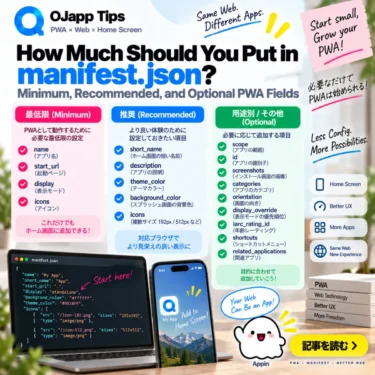
Next, I will finish this series by putting the Manifest fields together and answering a practical question: how much should you actually put in manifest.json? We will separate the minimum, recommended additions, and use-case-specific fields.
Add OJapp Tips as a preferred source on Google
Make it easier to find OJapp Tips articles in Google Search.