
This site uses the original WordPress plugin OJapp PWA Marketing.
Each article can be added to your Home Screen with its own dedicated icon.
Over the last five articles, I have revisited several long-standing assumptions about PWAs using current behavior and real-device testing.
A Service Worker is no longer required simply for installation.
A Web App Manifest alone can already define an installable home screen experience with a name, icon, start URL, and standalone presentation in supported environments.
scope defines the application’s navigation boundary, while id helps identify the application itself.
Optional metadata such as screenshots can even improve how the PWA is presented before installation.
That leaves one practical question.
How much should we actually put in manifest.json?
You can find enormous Manifest examples containing many different members, but a PWA does not need to start that way.
To finish this series, let’s separate the Manifest into core information, architecture-dependent fields, and optional features that only make sense for certain applications.
- 1 You do not need an everything-included Manifest
- 2 Start with the basic application information
- 3 name and short_name define the app name
- 4 icons create the most visible part of the home screen entry
- 5 start_url defines where the application begins
- 6 standalone is a practical default display mode
- 7 From here, the right fields depend on the architecture
- 8 Use id when you want a stable application identity
- 9 scope defines the application’s navigation boundary
- 10 id, start_url, and scope answer three different questions
- 11 Add theme_color and background_color when they serve the design
- 12 description explains what the app does
- 13 screenshots can enrich the pre-install experience
- 14 shortcuts create direct paths into the app
- 15 Thinking by use case makes the Manifest much simpler
- 16 A Service Worker is not a manifest.json field
- 17 This is roughly where I would start
- 18 Step away from the old PWA checklist
- 19 Modern PWAs can start with what the product actually needs
You do not need an everything-included Manifest
The Web App Manifest supports many members.
name
short_name
icons
start_url
display
id
scope
theme_color
background_color
description
screenshots
shortcuts
Seeing them together can make it look as if every PWA should define all of them.
That is not the most useful way to think about the Manifest.
A better model is to add information as the application actually needs it.
Start with the basic application information
A small Manifest might begin like this:
{
  "name": "My App",
  "short_name": "My App",
  "start_url": "/",
  "display": "standalone",
  "icons": [
    {
      "src": "/icon-192.png",
      "sizes": "192x192",
      "type": "image/png",
      "purpose": "any"
    },
    {
      "src": "/icon-512.png",
      "sizes": "512x512",
      "type": "image/png",
      "purpose": "any"
    }
  ]
}
Name.
Icon.
Launch URL.
Display mode.
Starting with these concepts makes the structure much easier to understand.
I use the same lightweight philosophy in The Fastest Way to Build a Minimal PWA.
 iOS and Android Have Different Goals for PWAs: The Real Difference Beyond Support or No Support
name and short_name define the app name
name provides the full application name.
"name": "OJapp PWA LAB"short_name provides a shorter alternative for constrained display areas.
"short_name": "PWA LAB"Providing both gives the user agent useful options depending on available space.
It does not guarantee that every operating system will render the exact short_name string under the home screen icon. Final presentation remains platform-dependent.
icons create the most visible part of the home screen entry
The icons member provides images for the installed application.
"icons": [
  {
    "src": "/icon-512.png",
    "sizes": "512x512",
    "type": "image/png",
    "purpose": "any"
  }
]
For Android, you can also provide a separate maskable asset:
{
  "src": "/icon-maskable-512.png",
  "sizes": "512x512",
  "type": "image/png",
  "purpose": "maskable"
}
In my PWA LAB testing, separate normal and maskable assets have been easier to control across devices than trying to make one image serve both purposes with any maskable.
Once installed, that icon becomes part of the user’s return path to the web application.
start_url defines where the application begins
For a site-wide PWA, you might use:
"start_url": "/"For a specific tool:
"start_url": "/timer/"In my 1P1A architecture, I often use:
"start_url": "."The dot is not a special command meaning the currently visible document. It is a relative URL resolved against the Manifest URL, so it needs an appropriate Manifest architecture such as dynamic page-level generation.
For a deeper look at this choice, see What Should You Use for PWA start_url?.
standalone is a practical default display mode
For an app-like presentation, a common starting point is:
"display": "standalone"Supporting environments can then launch the installed PWA with presentation that is separate from a normal browser tab.
fullscreen is also available, but it is most useful when occupying the entire display serves a real purpose, such as a game or screen-focused tool.
The exact result of a display mode still varies across browsers and operating systems.
From here, the right fields depend on the architecture
After the basic information, the Manifest becomes more application-specific.
Two particularly important members are id and scope.
These are not decorative options.
They relate to application identity and boundaries.
Use id when you want a stable application identity
An explicit id can look like:
"id": "/my-app/"For one stable PWA that may change its start URL in the future, a fixed id can be useful because application identity does not have to move with the launch destination.
But an explicit id can also be omitted.
When no valid id is provided, the effective start URL is used for application identity.
That can be useful in dynamic page-level architectures such as 1P1A, where distinct start URLs already provide the separation required by the design.
scope defines the application’s navigation boundary
A scope such as:
"scope": "/app/"defines /app/ as the application’s navigation range.
For a site-wide application, a root scope may make sense:
"scope": "/"But if the same site contains multiple PWAs, automatically giving all of them a root scope can create overlapping application boundaries.
I ran into this directly during Android testing in PWA LAB.
Depending on the architecture, omitting an explicit scope can also be a deliberate choice.
id, start_url, and scope answer three different questions
id
->
Which app is this?

start_url
->
Where does it start?

scope
->
How far does its navigation area extend?
Keeping those questions separate makes Manifest architecture much easier to reason about.
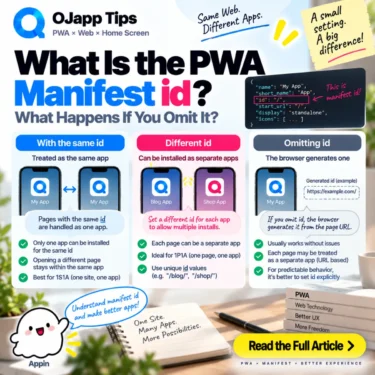
For multi-app designs, see What Is the PWA Manifest id? What Happens If You Omit It?.
Add theme_color and background_color when they serve the design
The Manifest can also provide color information:
"theme_color": "#111111",
"background_color": "#ffffff"
theme_color gives supporting browsers and operating systems a hint about the application’s theme color.
background_color can be used by supporting environments for background presentation during parts of the launch experience.
They are useful for maintaining a consistent visual identity, but their exact presentation is platform-dependent.
description explains what the app does
A Manifest can also provide a description:
"description": "A simple image compression tool that runs in your browser."This is metadata describing the purpose of the web application.
Supporting installation and distribution environments can use it to provide more context before installation.
screenshots can enrich the pre-install experience
You can also add screenshots:
"screenshots": [
  {
    "src": "/screenshots/app.webp",
    "sizes": "1280x720",
    "type": "image/webp",
    "form_factor": "wide",
    "label": "App preview"
  }
]
screenshots are not required to make the PWA work.
They provide preview information that supporting installation or distribution UI can use to show what the application looks like.
Think of them as presentation before installation rather than an installability requirement.
shortcuts create direct paths into the app
The Manifest can also define shortcuts:
"shortcuts": [
  {
    "name": "New Post",
    "url": "/new/"
  },
  {
    "name": "Analytics",
    "url": "/analytics/"
  }
]
Supporting browsers and operating systems can expose these as direct paths from the installed application’s icon to specific features.
Again, this is not something every PWA needs.
It becomes useful when the application has multiple frequently used destinations.
Thinking by use case makes the Manifest much simpler
| Use case | Fields to consider |
|---|---|
| Start with a home screen app | name / short_name / icons / start_url / display |
| Long-lived fixed PWA | Core fields + id |
| One site-wide application | Core fields + id / scope |
| Multiple page-level apps | Dynamic start_url / icons / name, with id and scope chosen intentionally |
| Visual branding | theme_color / background_color |
| Richer pre-install information | description / screenshots |
| Direct links to app features | shortcuts |
| Offline behavior | Implement separately with technologies such as a Service Worker |
A Service Worker is not a manifest.json field
This is one of the most important distinctions from this series.
A Service Worker is not a Manifest member.
The two technologies are frequently used together in PWAs, but they solve different problems.
Web App Manifest
->
Name
Icons
Launch URL
Display mode
App identity and navigation boundaries
Pre-install metadata

Service Worker
->
Network interception
Offline behavior
Explicit caching strategies
Background handling required by features such as Web Push
And in 2026, a Service Worker is not required merely to make a PWA installable.
It makes more sense to add one when the application actually needs the capabilities it provides.
This is roughly where I would start
For an ordinary web page or web tool, my first Manifest would be around this size:
{
  "name": "My App",
  "short_name": "My App",
  "start_url": "/",
  "display": "standalone",
  "icons": [
    {
      "src": "/icon-192.png",
      "sizes": "192x192",
      "type": "image/png",
      "purpose": "any"
    },
    {
      "src": "/icon-512.png",
      "sizes": "512x512",
      "type": "image/png",
      "purpose": "any"
    },
    {
      "src": "/icon-maskable-512.png",
      "sizes": "512x512",
      "type": "image/png",
      "purpose": "maskable"
    }
  ]
}
Then I would add fields such as:
id
scope
theme_color
background_color
description
screenshots
shortcuts
only when the architecture or product actually benefits from them.
That is much easier to debug than copying a huge Manifest and later discovering that you do not know why half of its fields exist.
Step away from the old PWA checklist
PWA development has a long history.
For years, the typical mental checklist looked something like:
Create a Manifest
Create a Service Worker
Add offline support
Add Push
Make it installable
Those technologies can absolutely belong in the same application.
But in 2026, they do not all need to be your starting point.
If you need a home screen entrance, start there.
If you need offline behavior, add a Service Worker.
If you need a stable app identity, define id.
If you need an explicit navigation boundary, define scope.
If you want a richer installation presentation, add screenshots.
A Manifest is not a file where you must fill in every available field. It is a file that describes the information your web application actually needs.
Modern PWAs can start with what the product actually needs
Across these six articles, we revisited several assumptions that still appear in older PWA material.
A Service Worker is not required merely for installation.
The Manifest alone can already provide much of the basic installed experience.
scope defines an app boundary.
id defines application identity.
screenshots can enrich presentation before installation.
And manifest.json does not need to contain every possible member.
Instead of adding features because the project has been labeled a PWA, choose the capabilities that the web application actually needs.
After spending a lot of time testing PWAs on real devices, that is the model I find easiest to work with.
Do not copy an old checklist blindly. Start small, test the current browsers you care about, and add each Manifest field because you know what job it is supposed to do.
Add OJapp Tips as a preferred source on Google
Make it easier to find OJapp Tips articles in Google Search.